🚫 PRODEVANS CONFIDENTIAL – Do Not Copy or Share 🚫
Skip to main content
BookStack
View All
Search
Shelves
Books
Log in
Info
Content
Google Cloud Configura...
Configure OAuth Consen...
Page Revisions
Revision #134
Configure OAuth Consent Screen
Configure OAuth Consent Screen
Steps:
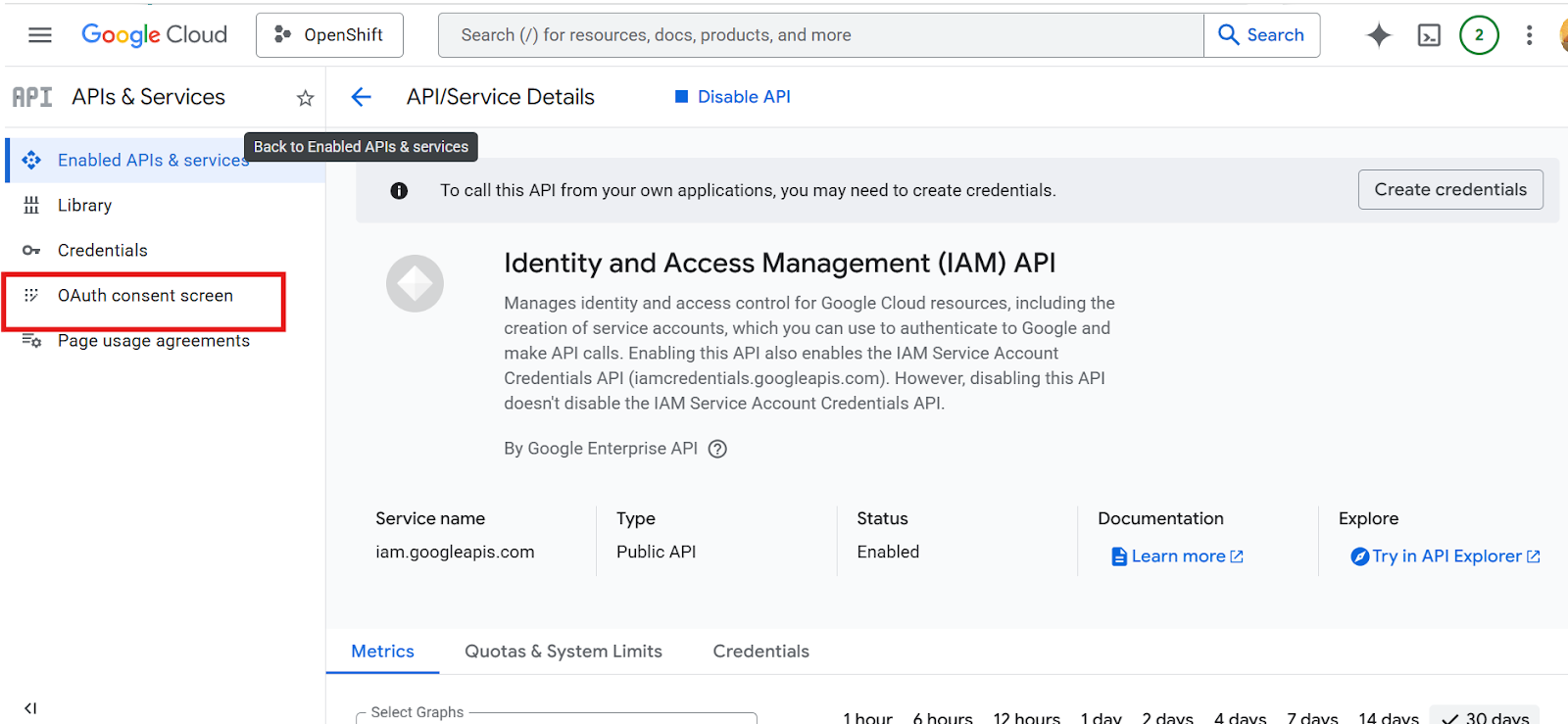
1.
Go to
"OAuth Consent Screen"
2.
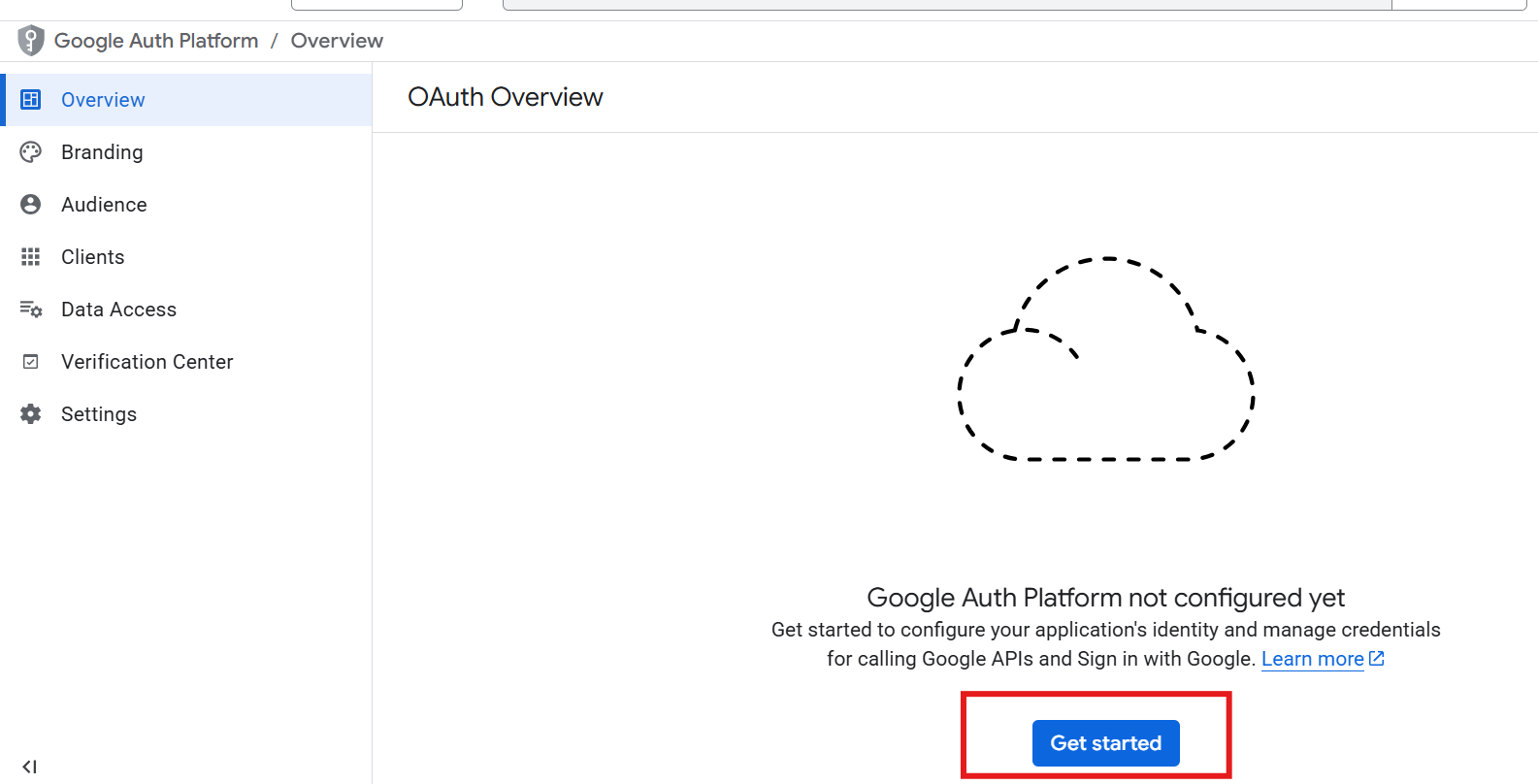
Fill required details:
- App Name
- Support Email
- Developer Email
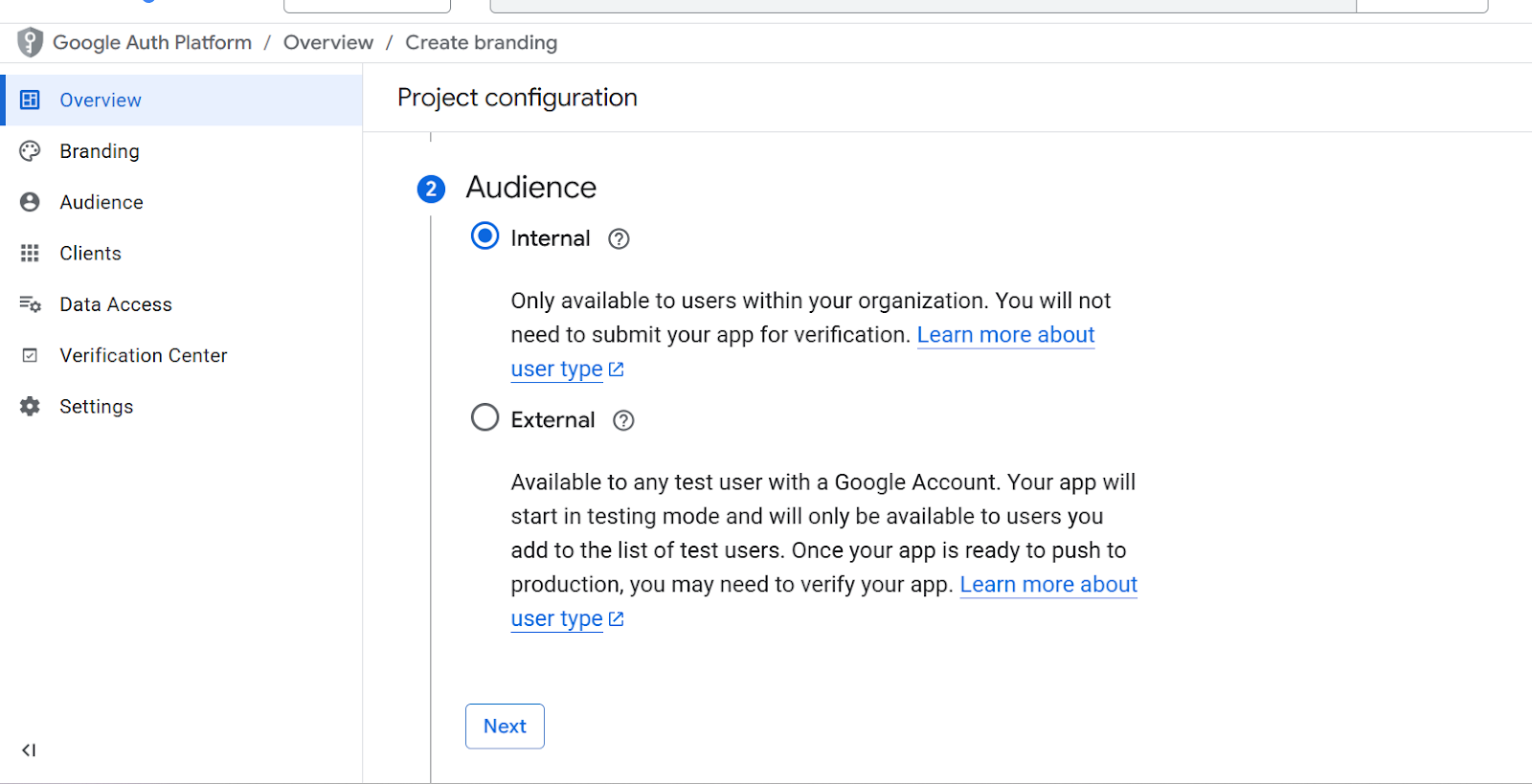
3.
Select User Type:
- Internal (for organization)
- External (public)
4.
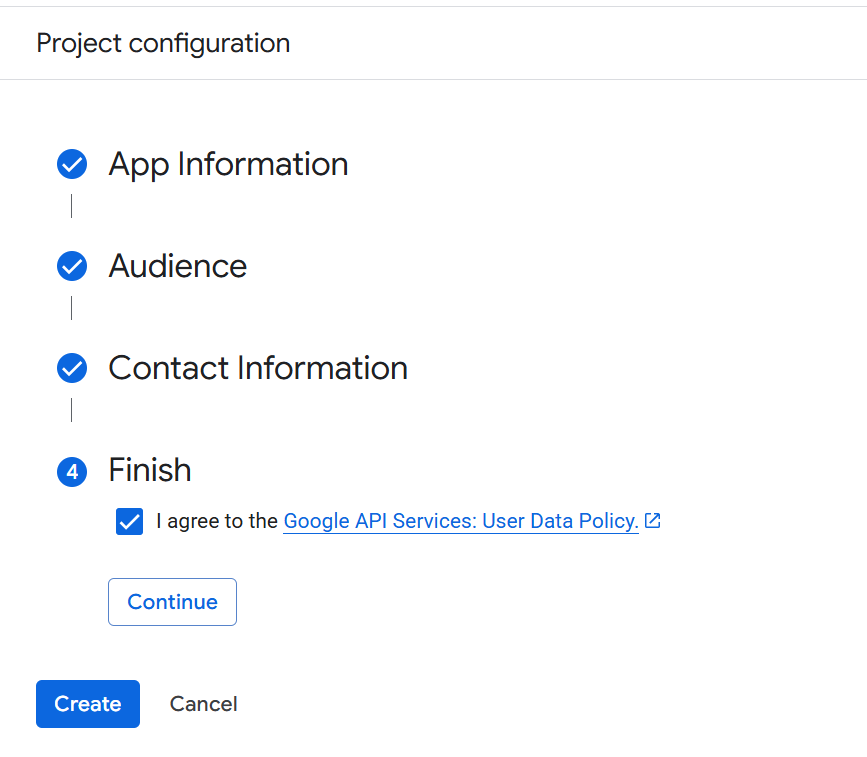
Save and Continue
Important Notes
- Add authorized domains if required
- Add test users if in testing mode
Expected Result
Consent screen configured successfully
Back to top