
Configuring a Network (RHEL-10)
Steps to configure a network in Linux through NetworkManager
What does configuring a network mean?
- To set up an IP address (automatic or manaul).
- Connecting to a Wifi or wired network.
- Setting DNS (Domain Name Server).
- Managing network interfaces (like eth0 and enp0s3).
To configure a network through NetworkManager we use two methods. They are Nmcli and Nmtui.
Nmcli:
- Nmcli (NetworkManager Command Line Interface) is used to create IP addresses automatically or manually. It is command-based.
- We use Linux to control your network from the terminal.
- We use nmcli to also check the status of the network. We type the command "nmcli connection show" in the terminal.
- We can switch which particular network we want to connect to. The command for that is nmcli connection up <connection_name>
- We can enable/disable network interfaces.
- The two methods to assign IP address to Network interface card is Dynamic (Automatic) and Static (Manual).

Automatic method:
- In this method we add a connection by writing the following command:
nmcli connection add con-name "network-name" type ethernet autoconnect yes ifname enp0s3 ipv4.method auto

- You can add the required network name you want to create. You can also add which different network interface card you want to add in your network. Once created we reload the connection and then show it.
Manual method:
- In this method we add a connection by writing the following command:
nmcli connection add con-name "network-name" type ethernet ifname enp0s3 autoconnect yes ipv4.addresses "192.168.100.100/24" ipv4.method manual

- We can also add the Dns server, gateway and IP address manually.
nmcli connection add con-name "dell" type ethernet autoconnect yes ifname enp0s3 ipv4.addresses "10.0.1.10/8" ipv4.gateway "10.0.1.1" ipv4.dns "10.0.1.1" ipv4.method manual

- To watch the details of these connections we use the command:
nmcli connection show "dell" | grep -i "ipv4"
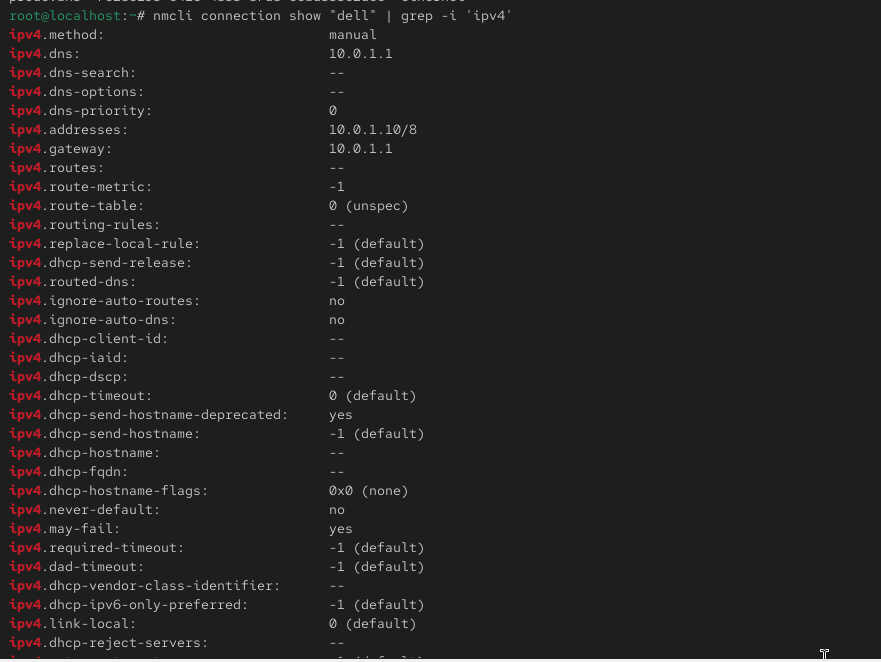
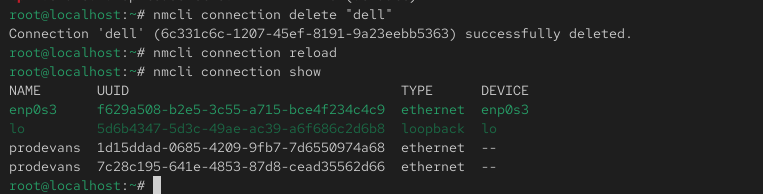
To delete a connection:
nmcli connection delete "dell"
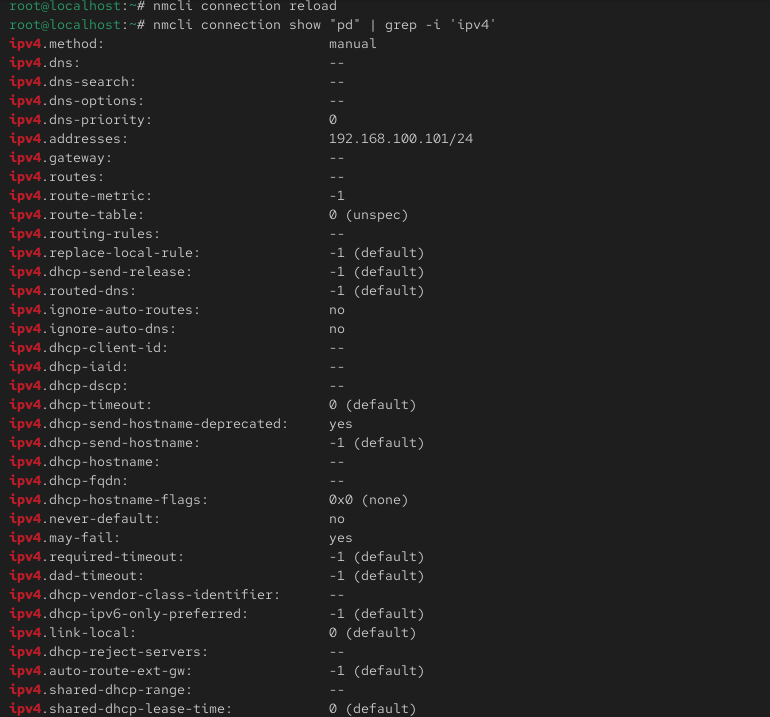
To modify the connection:
nmcli connection modify "pd" ipv4.addresses "192.168.100.101/24" ipv4.method manual

To watch active connections:
nmcli connection show --active
To collect the information from the connections:
ip: ifconfig, ip -br -c a, ip a
dns: cat /etc/resolv.conf
gateway: ip route
Nmtui:
- It is a text based user interface.
- NetworkManager Text User Interface is a graphical terminal-based menu used for configuring networks.
- It is more user friendly compared to nmcli.
- We don't need to memorise the commands in nmtui. We just have to enter the required details.
- We go to the menu by typing nmtui.
- We have to edit the connection and then active it.
- We then set the hostname for the system
- We set the IP address and other required details.
Steps:
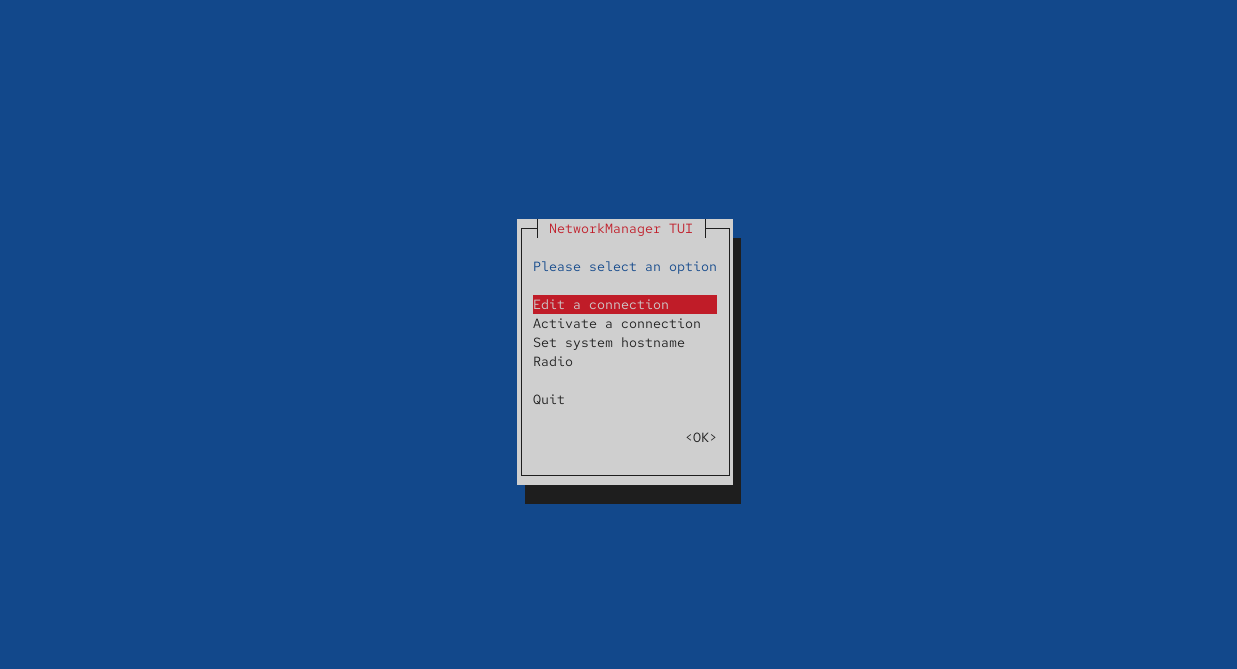
- Type Nmtui and a menu will appear
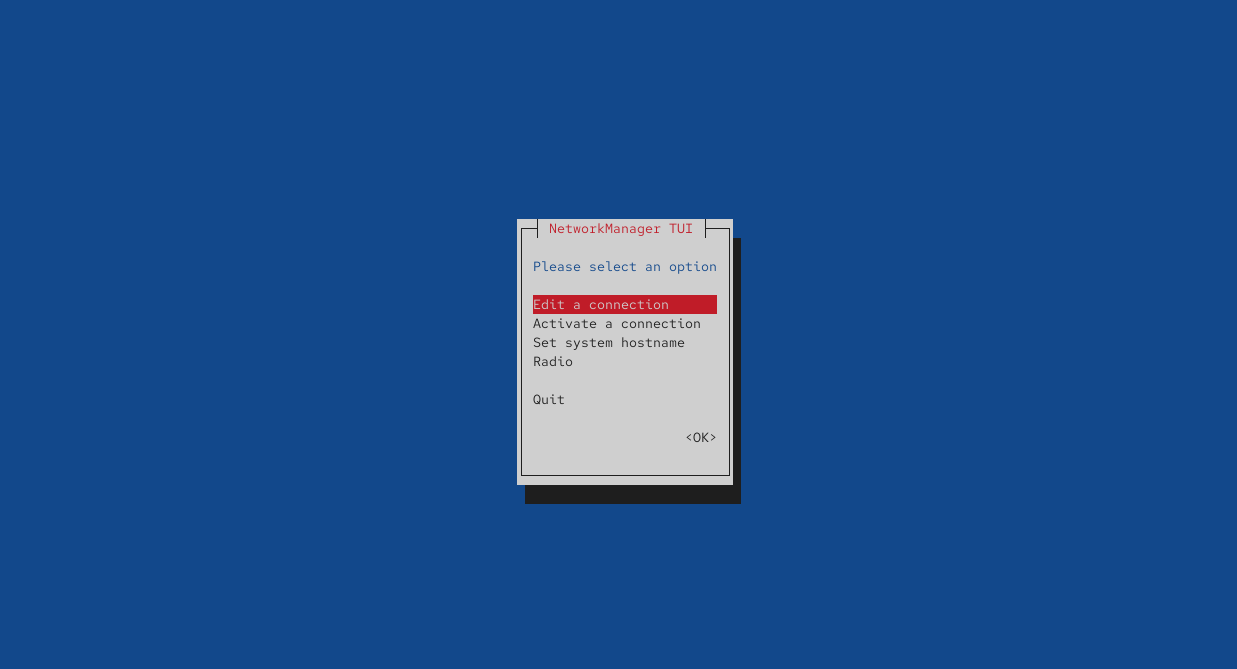
- Choose the option 'Edit connection'.
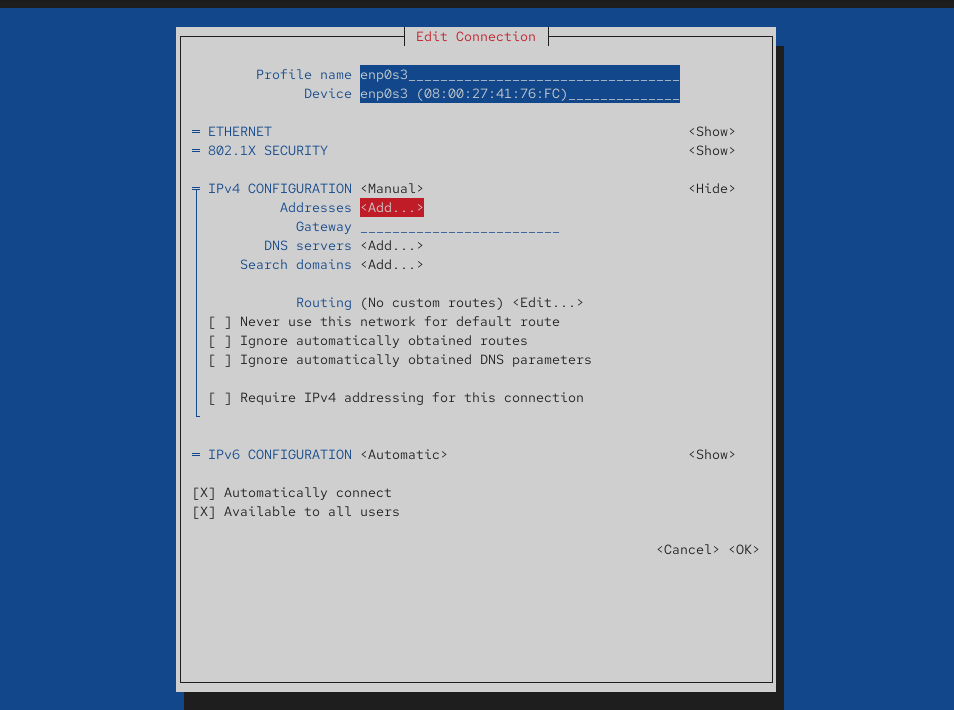
- Select the connection you want to edit. Eg: enp0s3
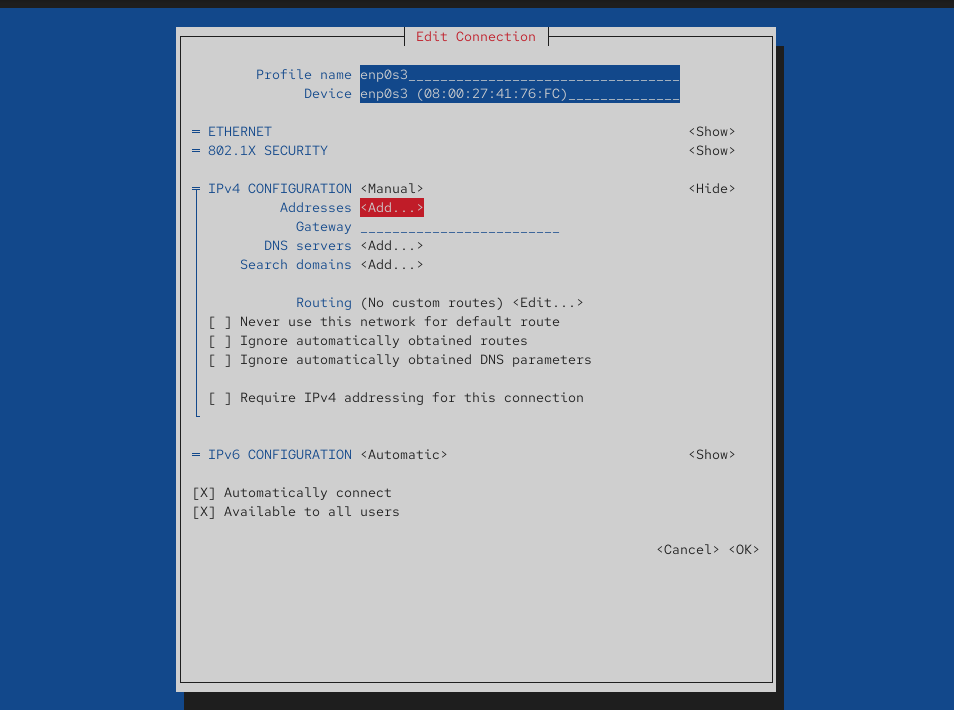
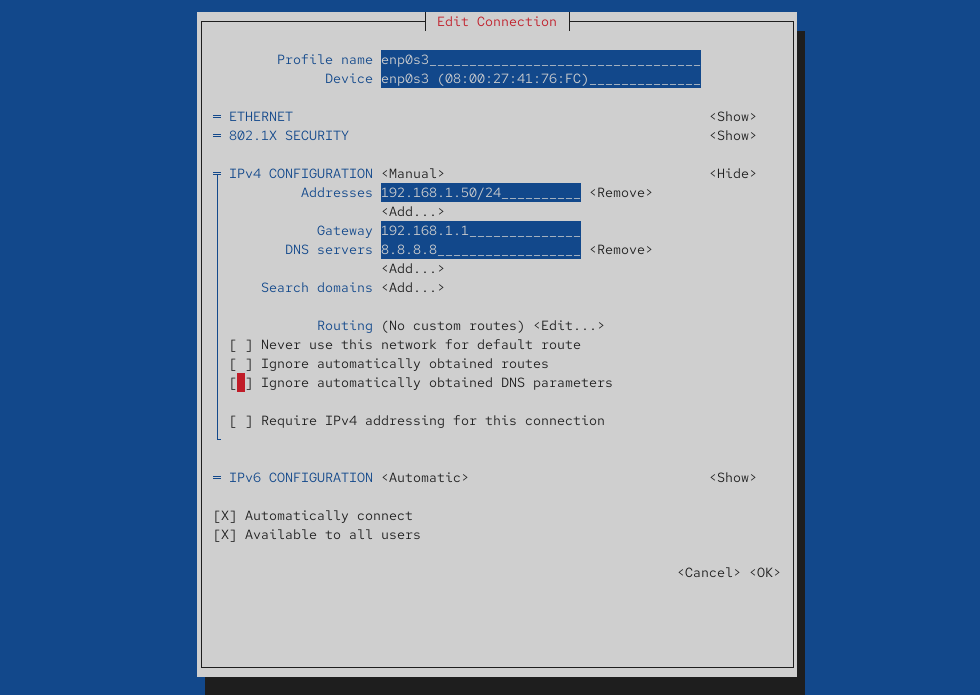
- Then change the ipv4 configuration from automatic to manual.
- We then enter the fields of ip address, gateway, dns servers.
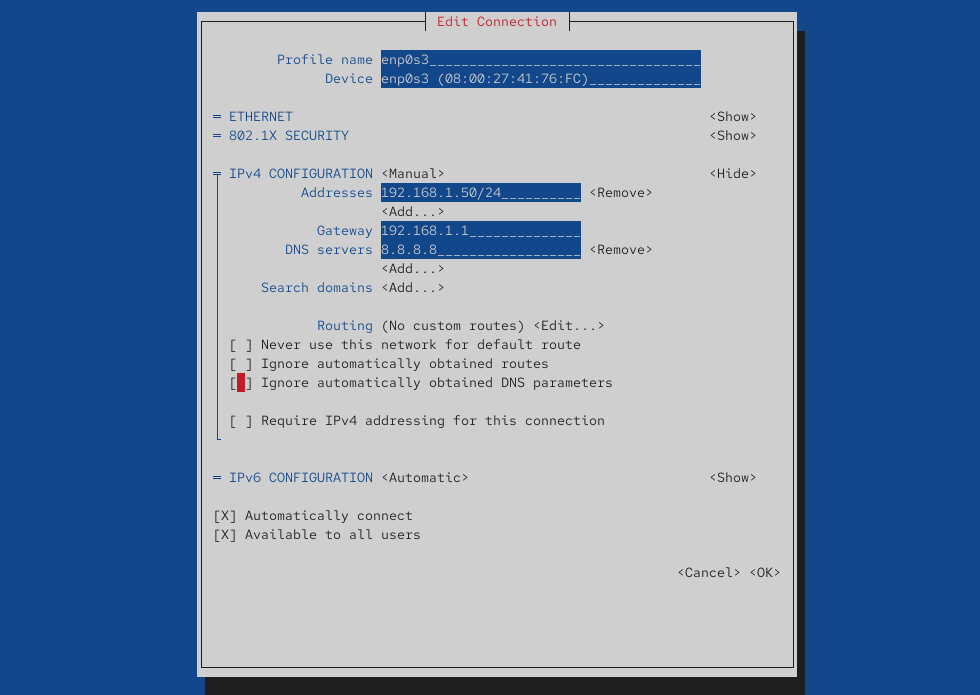
- Then scroll down and select ok and press enter.
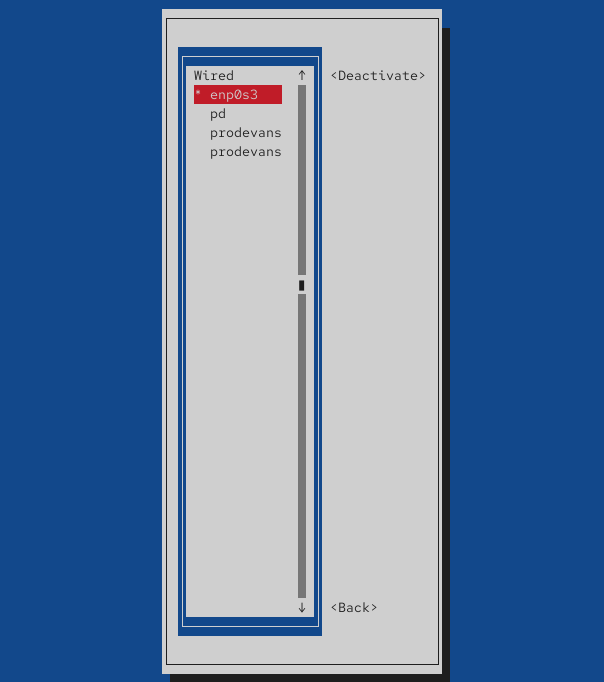
- Go to the activate a connection tab.
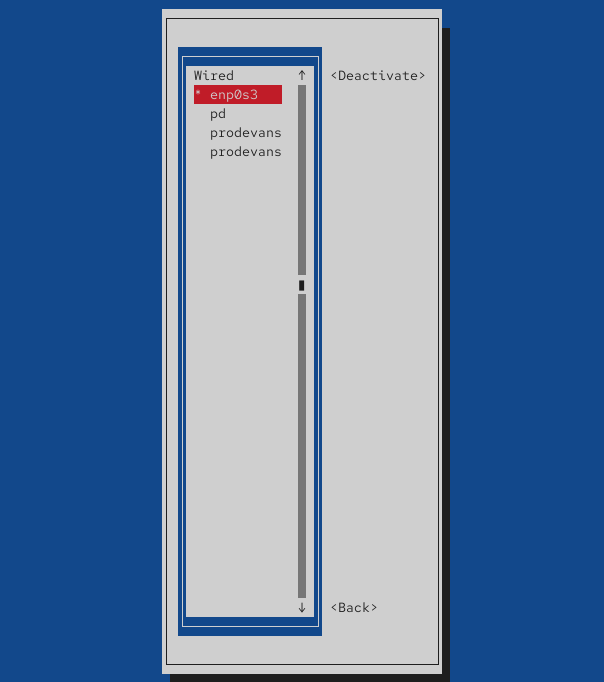
- Turn on your network. (you will see a star symbol next to the connection)
- Once you are done with all of this select quit and get out of nmtui
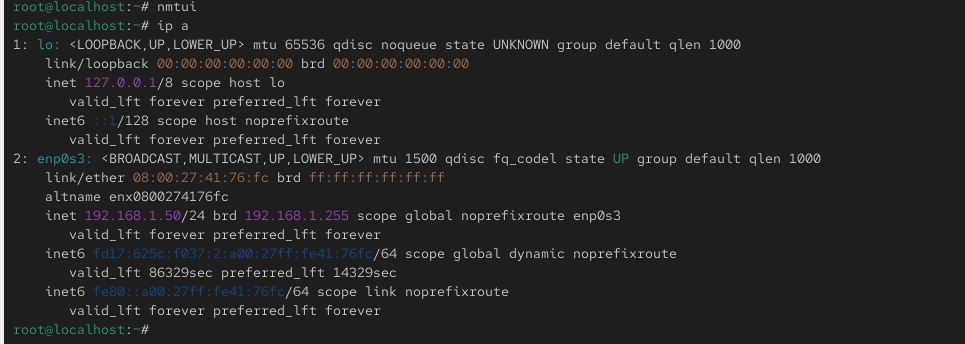
- Check the ip connection through command 'ip a'.
No comments to display
No comments to display