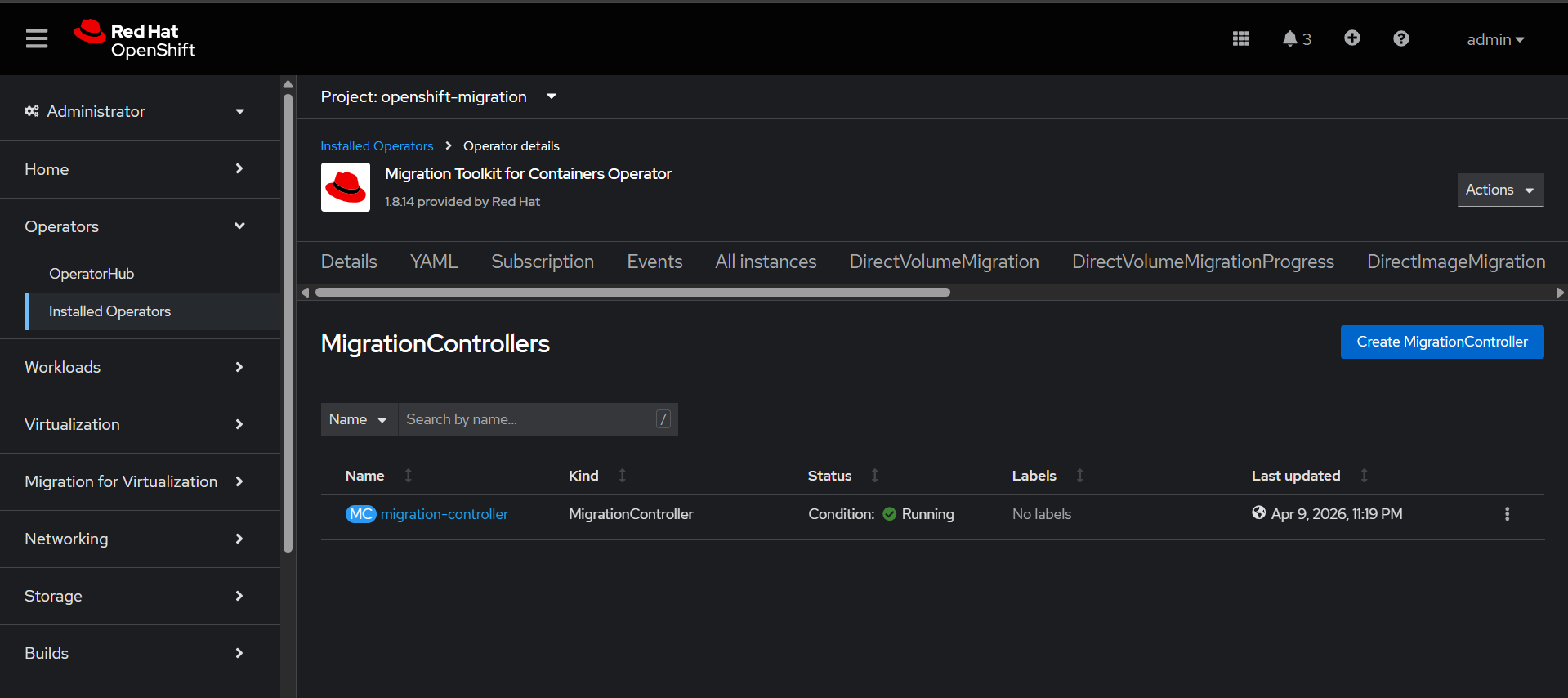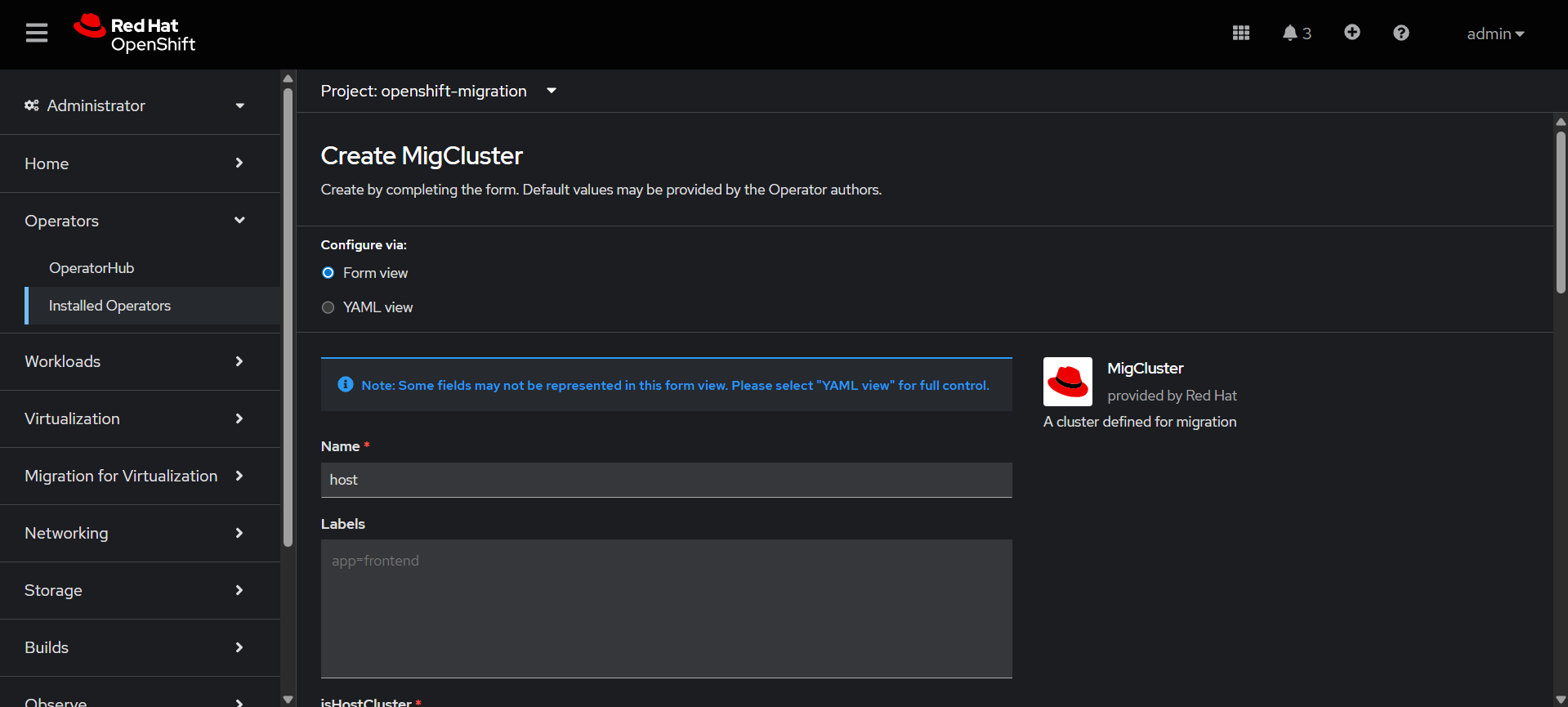
Openshift Deployment & Virtualization Setup
Bastion Configuration:
1. DNS Configuration
1.1 Install bind
yum install bind bind-utils -y
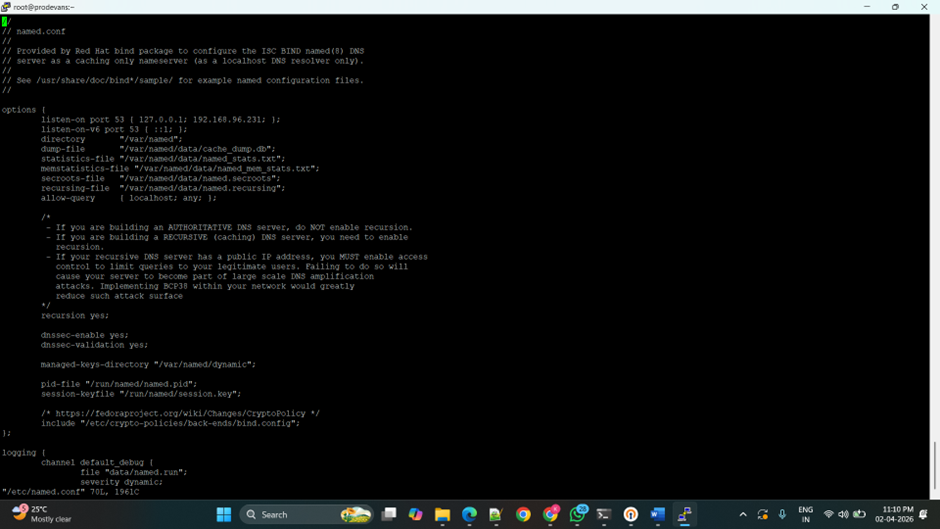
1.2 Edit the named.conf

1.3 Create and edit forward.zone
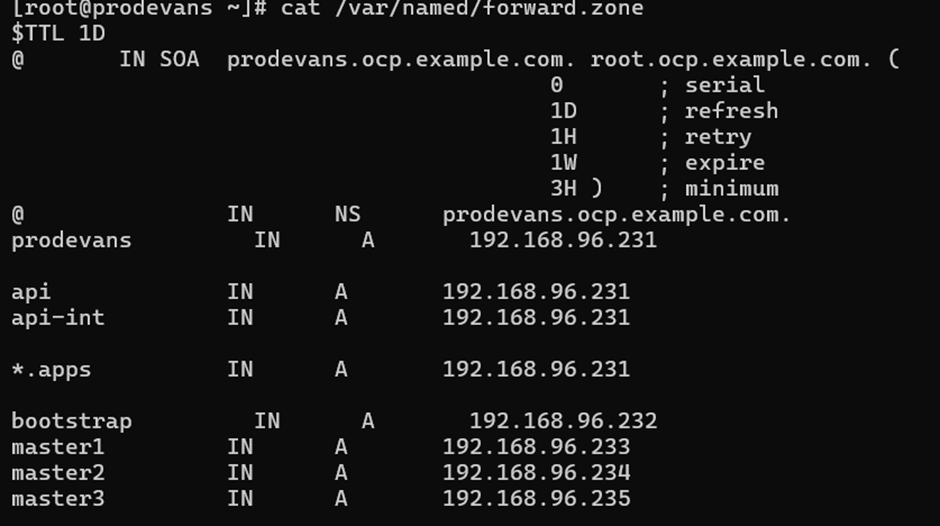
1.4 Create and edit forward.zone
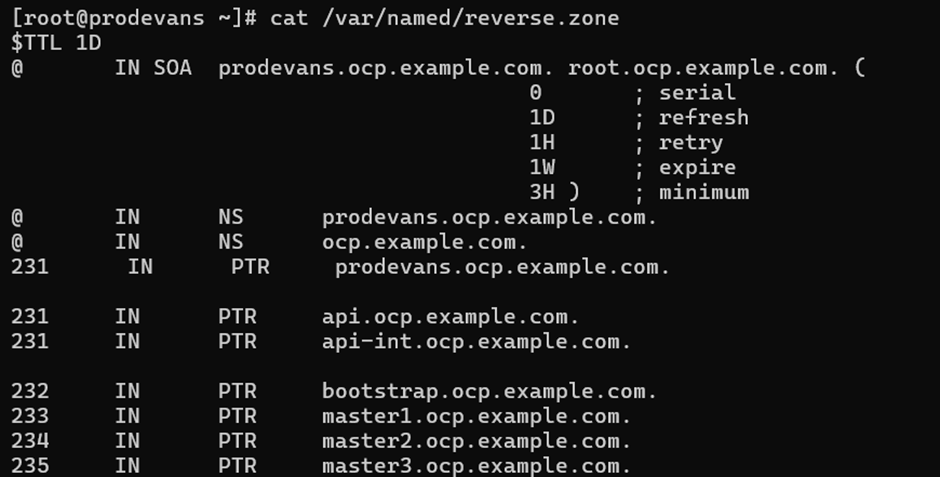
1.5 Change the ownership of forward and reverse zone files.
chown root:named /var/named/forward.zone
chown root:named /var/named/reverse.zone

1.6 Check namedconf, named zone.
named-checkconf -z /etc/named.conf

named-checkzone forward /var/named/forward.zone

named-checkzone forward /var/named/reverse.zone

1.7 Start, enable and check the named service.
systemctl start named
systemctl enable named
systemctl status named
1.8 Check the resolving.
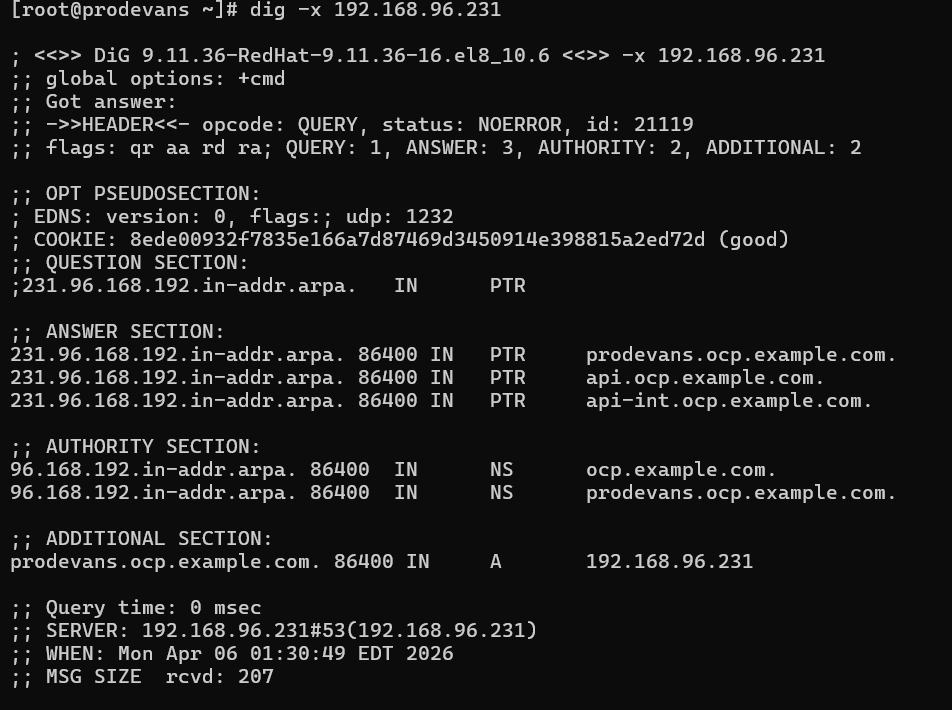
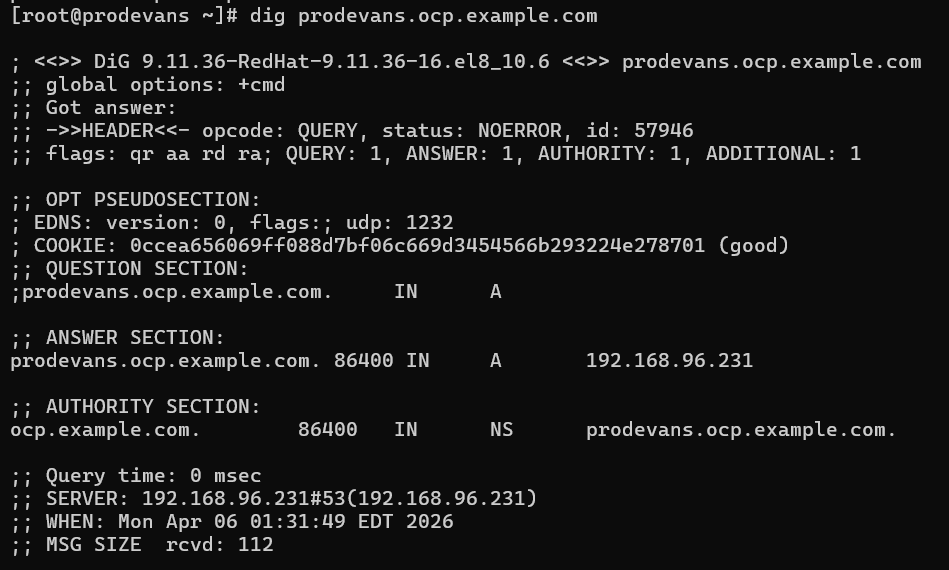
2. haproxy configuration
2.1 Install haproxy

2.2 Edit haproxy configuration
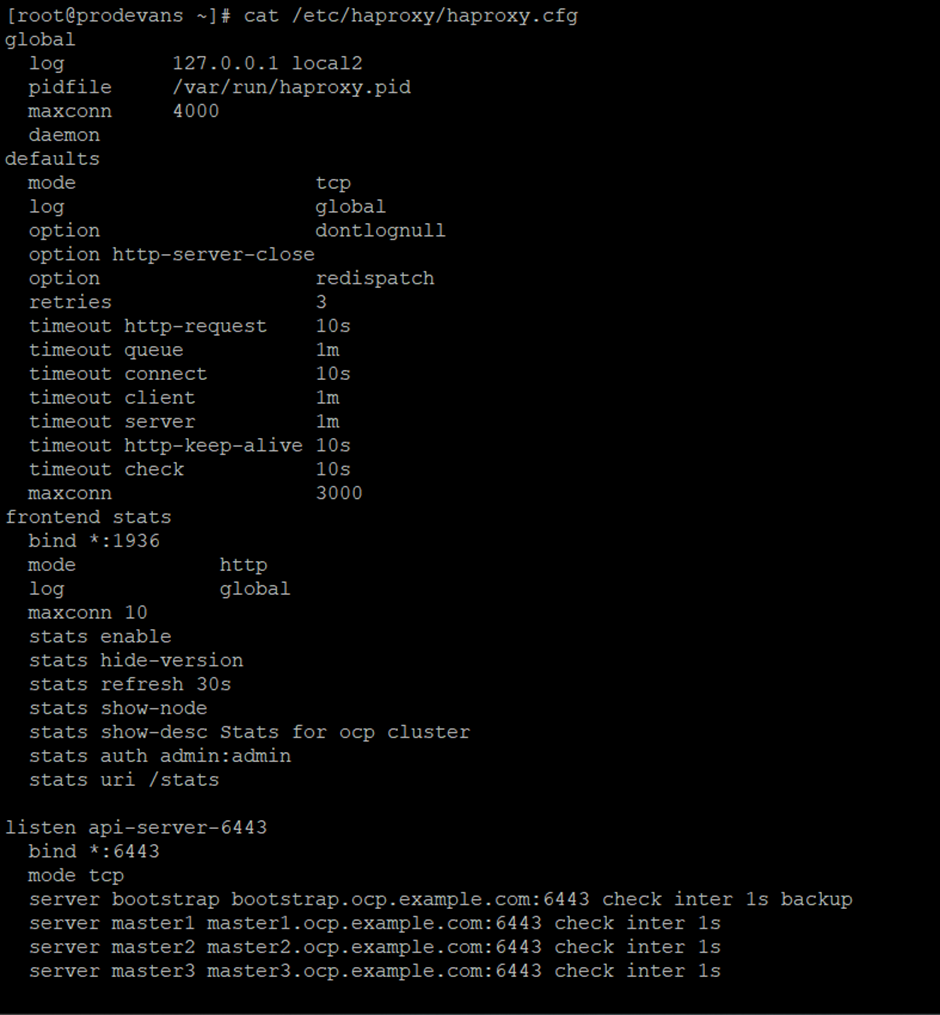
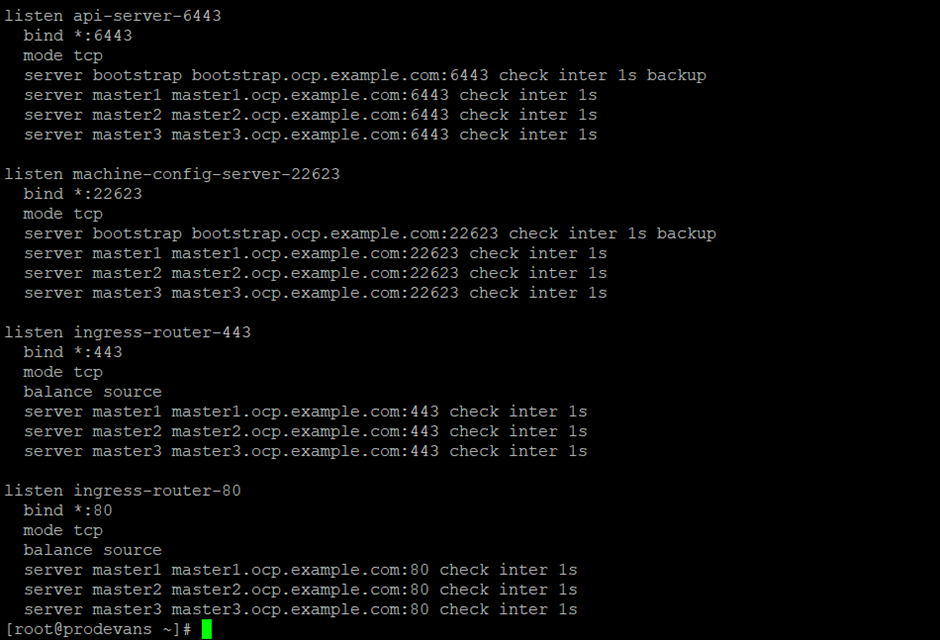
2.3 Stop the firewalld service.

2.4 Stop the selinux service.

2.5 Start the haproxy service.
systemctl start haproxy
systemctl enable haproxy
systemctl status haproxy
3. Create the directory and download the mirror packages from
https://mirror.openshift.com/pub/openshift-v4/clients/ocp/
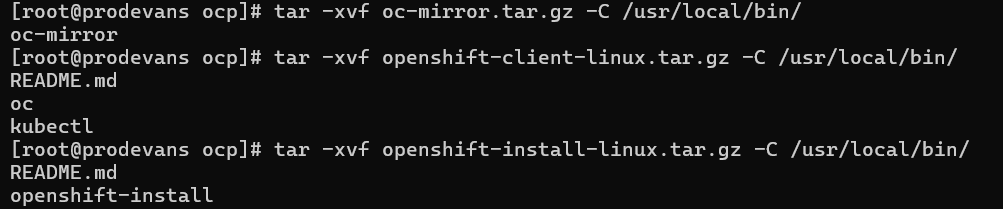
3.1 Download oc-mirror, openshift-client-linux and openshift-install-linux.
mkdir ocp
cd ocp/
3.2 Untar the files in the ocp directory

4. Copy the pull secret file from
https://console.redhat.com/openshift/downloads
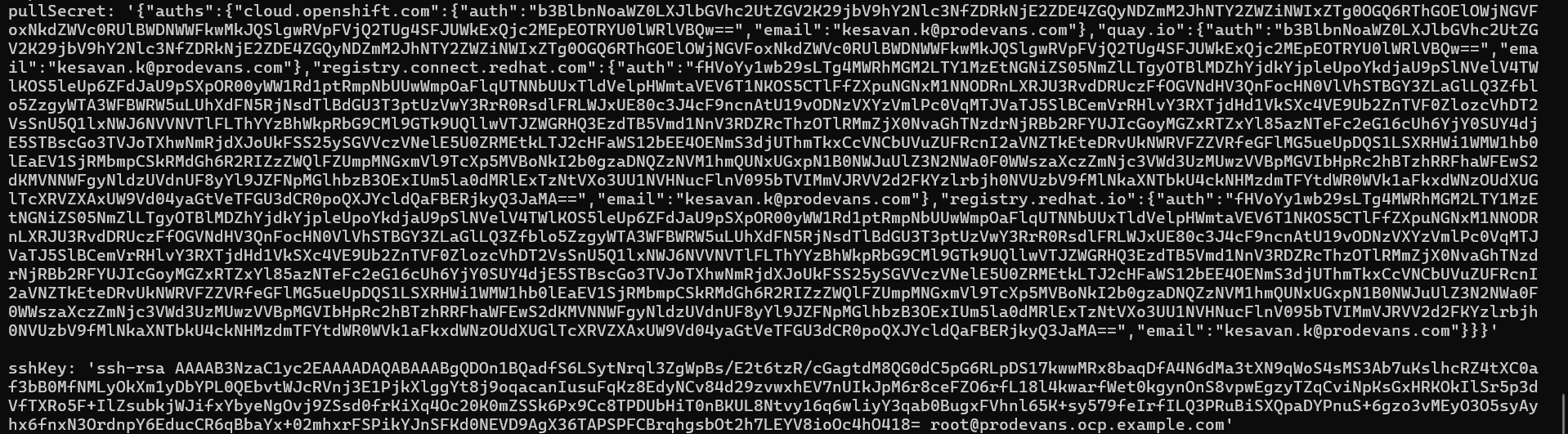
5. Generate sshKey
ssh-keygen


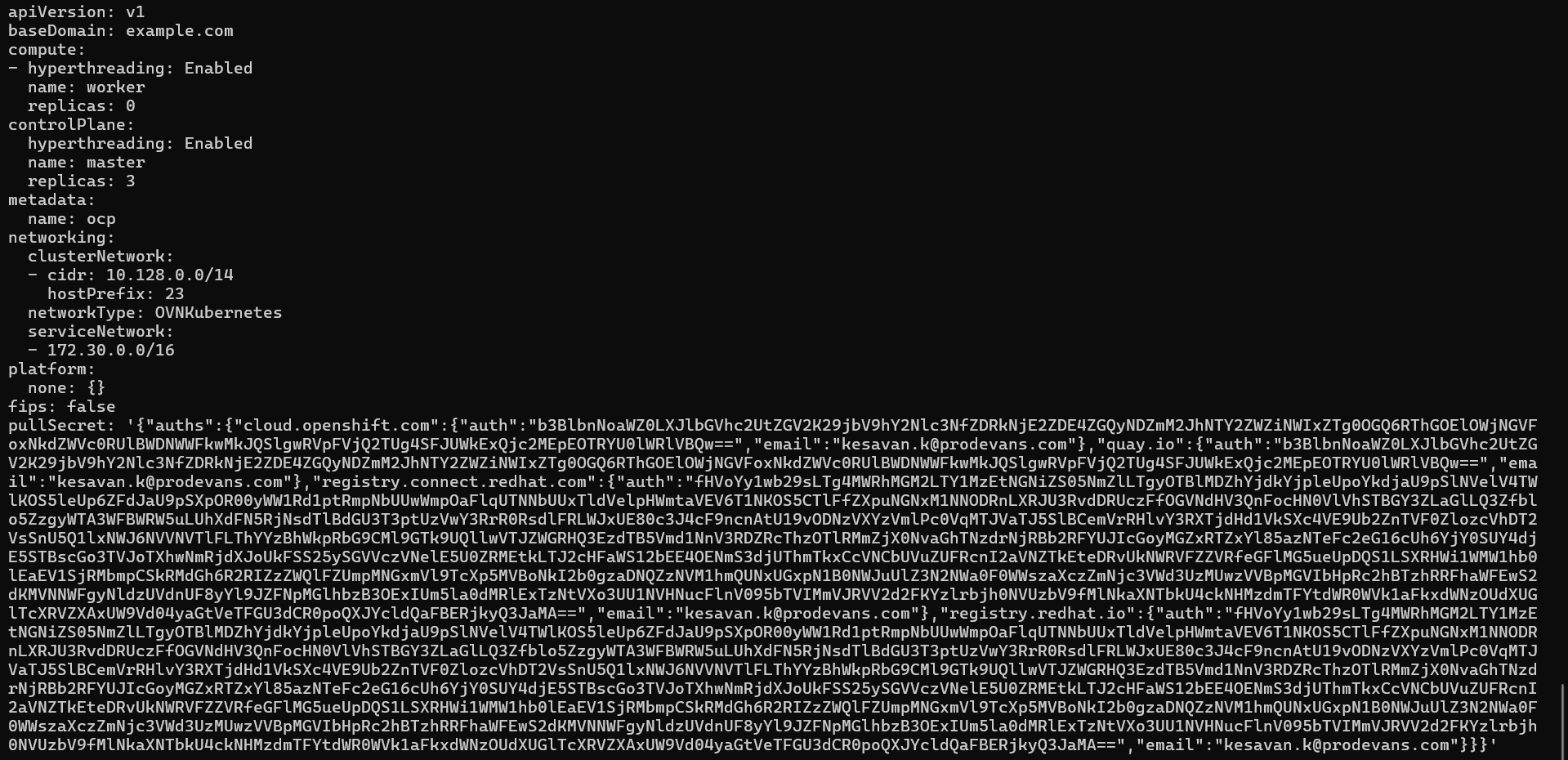
6. Create a ignition directory and create install-config.yaml file.
mkdir ignition
cd ignition/
vi install-config.yaml
6.1 Create manifests in the ignition directory.
[root@prodevans ignition]# openshift-install create manifests
INFO Consuming Install Config from target directory
WARNING Making control-plane schedulable by setting MastersSchedulable to true for Scheduler cluster settings
INFO Manifests created in: manifests and openshift
6.2 Create ignition in the ignition directory.
[root@prodevans ignition]# openshift-install create ignition-configs
INFO Consuming Common Manifests from target directory
INFO Consuming Master Machines from target directory
INFO Consuming Openshift Manifests from target directory
INFO Consuming OpenShift Install (Manifests) from target directory
INFO Consuming Worker Machines from target directory
INFO Ignition-Configs created in: . and auth
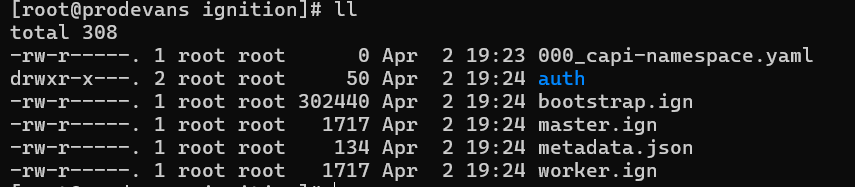
7. Install httpd service and change the port number.
7.1 Installing httpd service

7.2 Change the port number in the httpd configuration

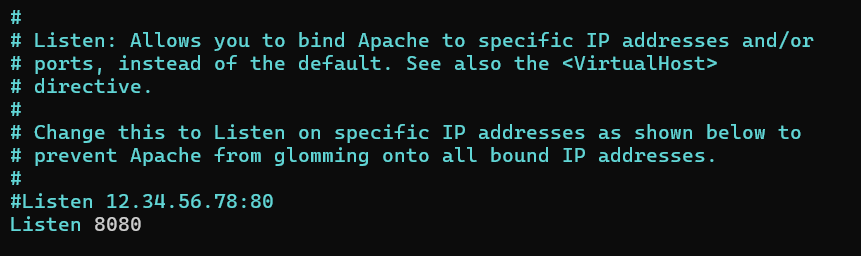
Change the Listen port 80 to 8080.
8. Copy all the .ign files from ignition directory to /var/www/html/
cp ignition/*.ign /var/www/html/
ll /var/www/html
chmod 655 /var/www/html/*.ign
ll /var/www/html

8.1 Enable, start and check the status of httpd service.
systemctl start httpd
systemctl enable httpd
systemctl status httpd
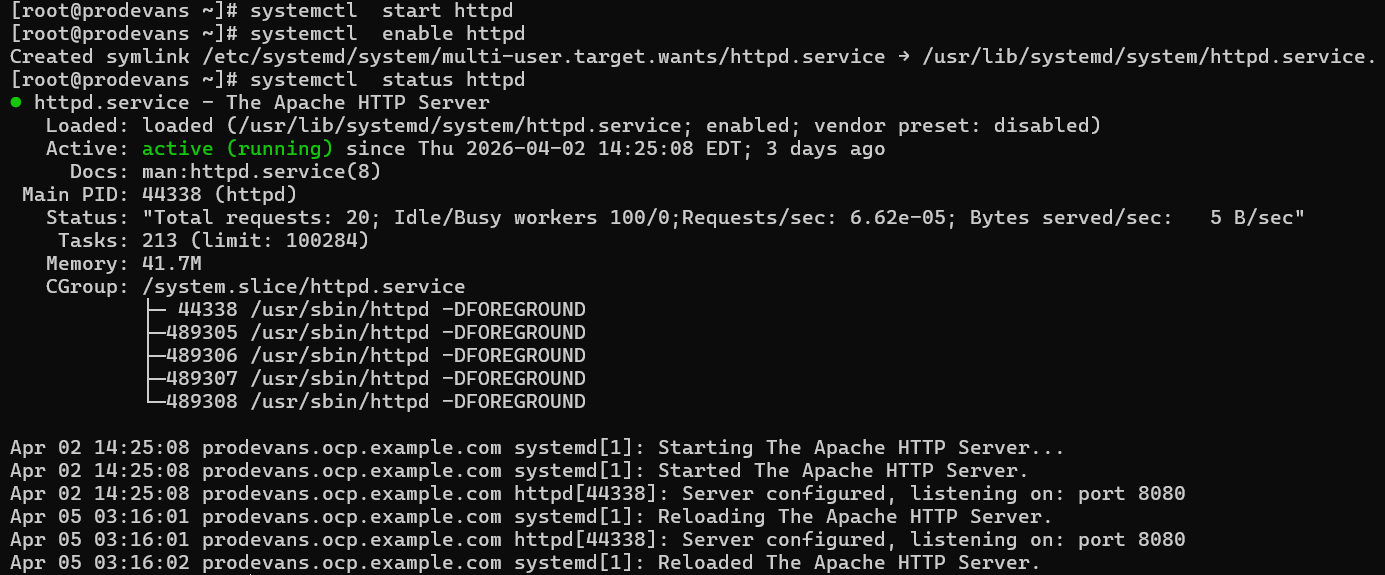
Now the Bastion machine setup is completed.
Bootstrap Configuration
Create Bootstrap VM and become the root user then configure the network.
1. Then install the coreos.
coreos-installer install /dev/sda --ignition-url=http://192.168.96.231:8080/bootstrap.ign --insecure-ignition -copy-network
2. Reboot the machine.
reboot
3. After successful reboot, ssh into bootstrap using bastion machine.
ssh core@bootstrap
It will show journalctl command. Run that command to make sure bootstrap is running fine.
Master & Worker Configuration
ODF Configuration
Go to Operators → OperatorHub→ search Local Storage
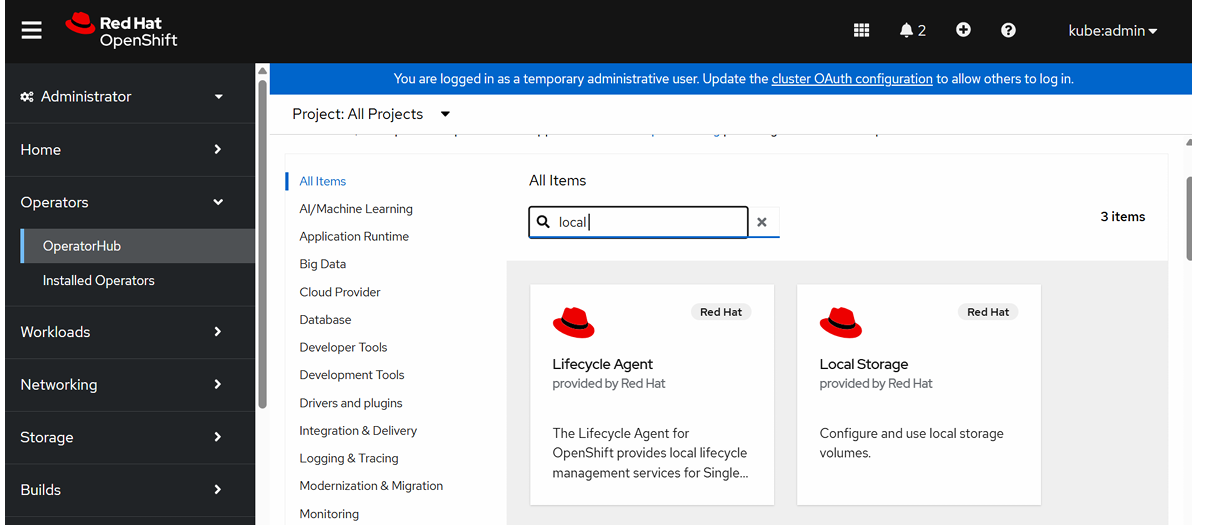
Click Local Storage and Install
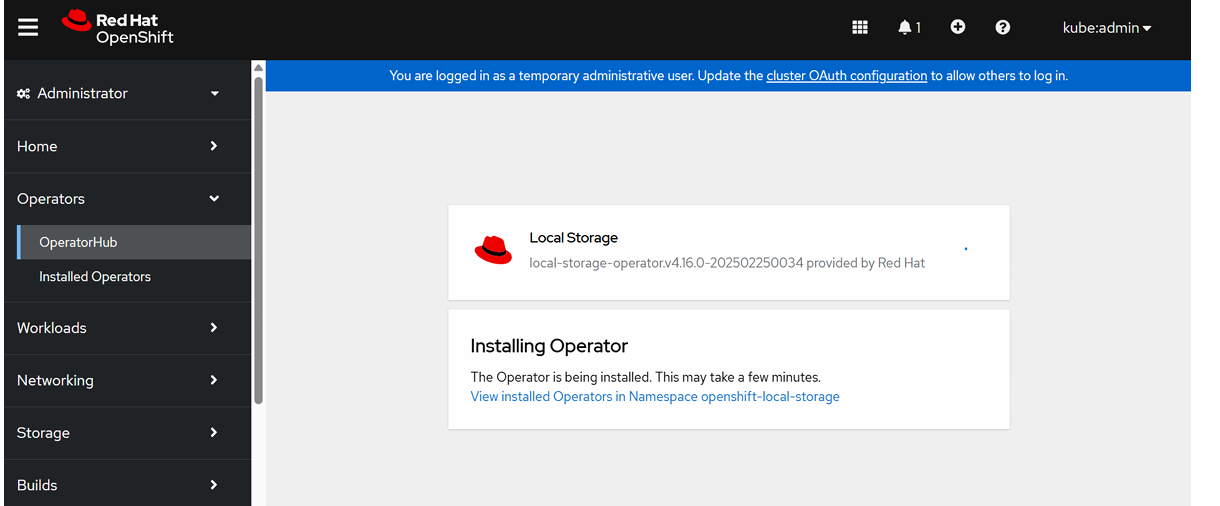
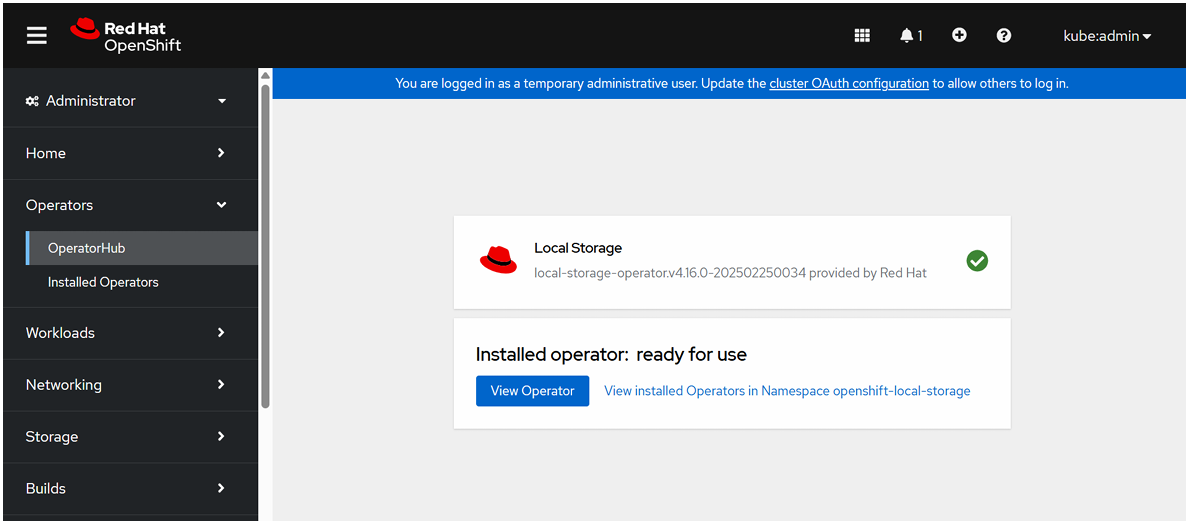
To verify Local Storage Operator Installation,
Installing OpenShift Data Foundation Operator:
Go to Operators → OperatorHub→ search OpenShift Data Foundation
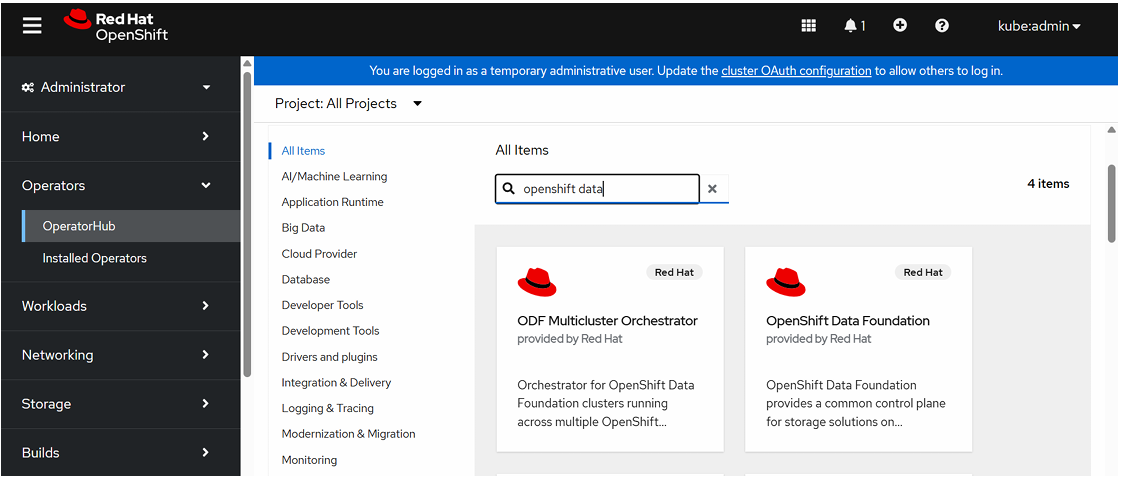
Click OpenShift Data Foundation Operator and click install.
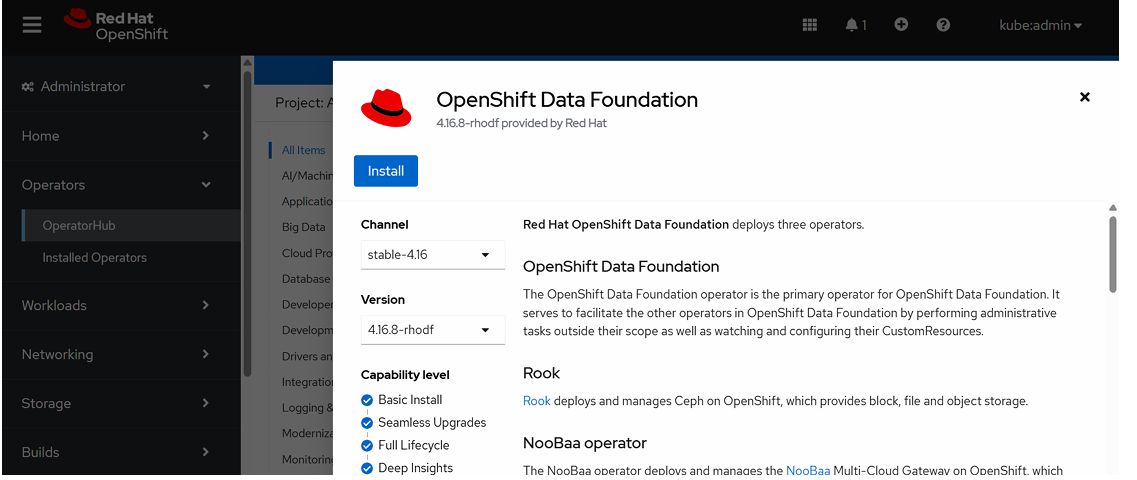
Select Update Channel, Version, Name Space and Update Approval.
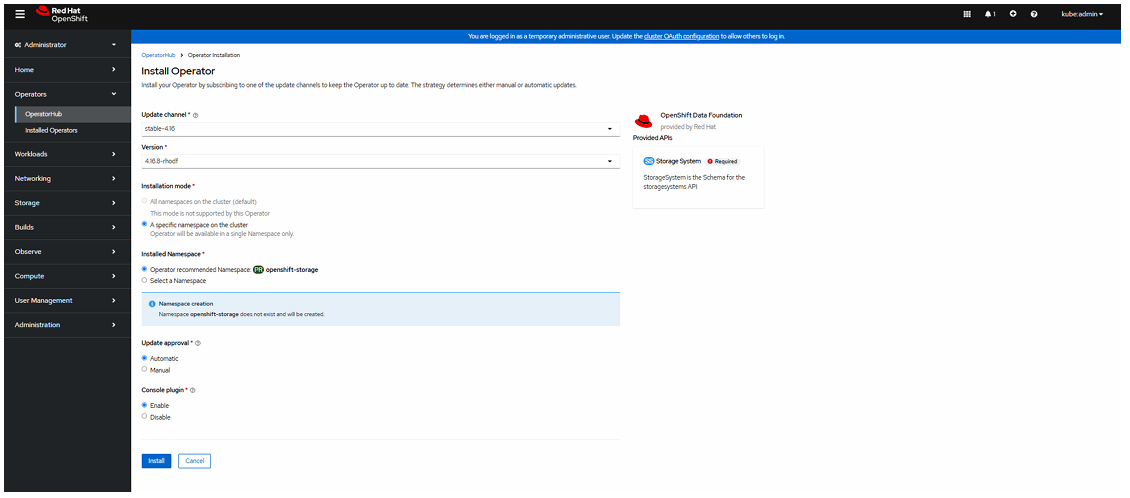
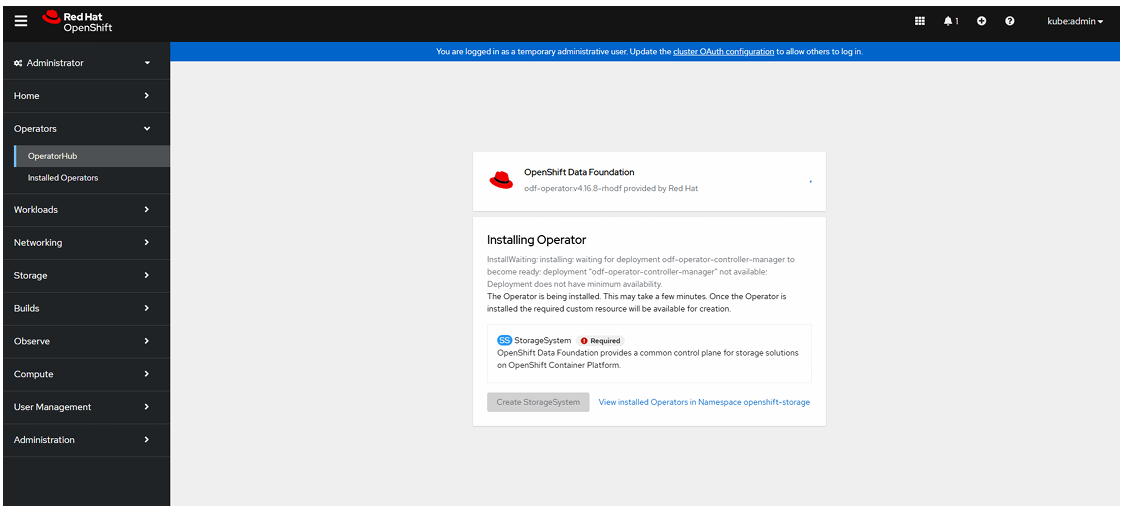
To Create a StorageSystem:
Click Create StorageSystem.
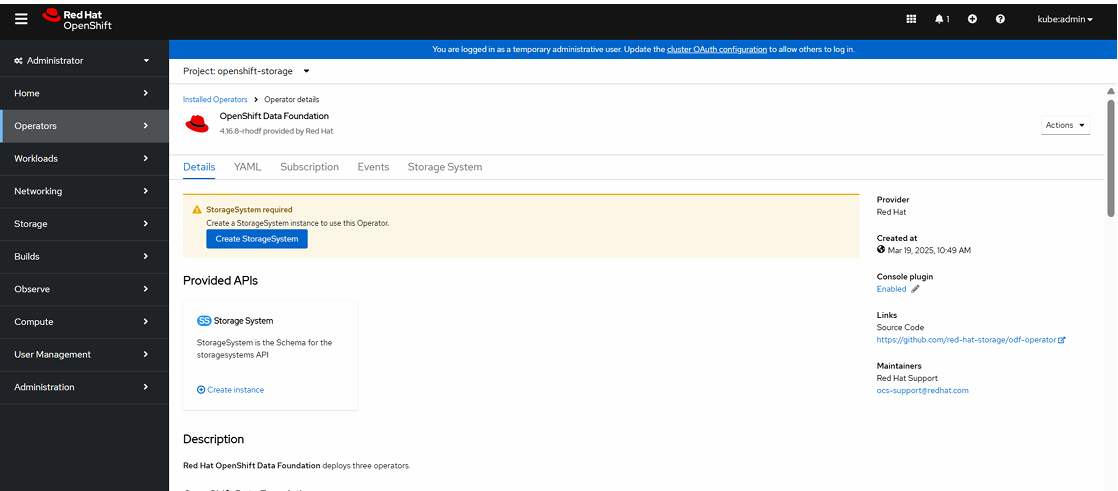
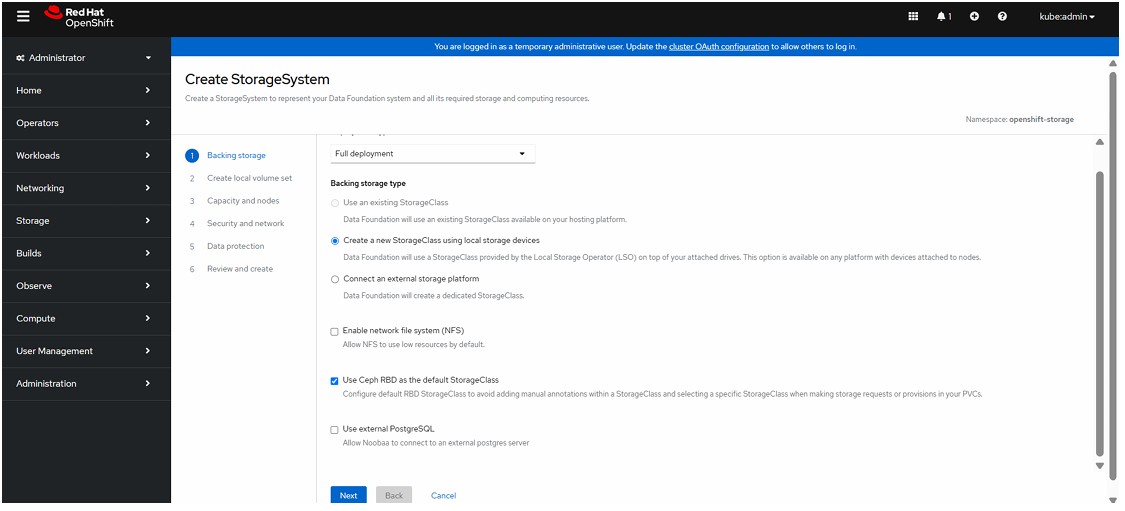
Select Full deployment , select Create a new StorageClass using local storage devices and click Next.
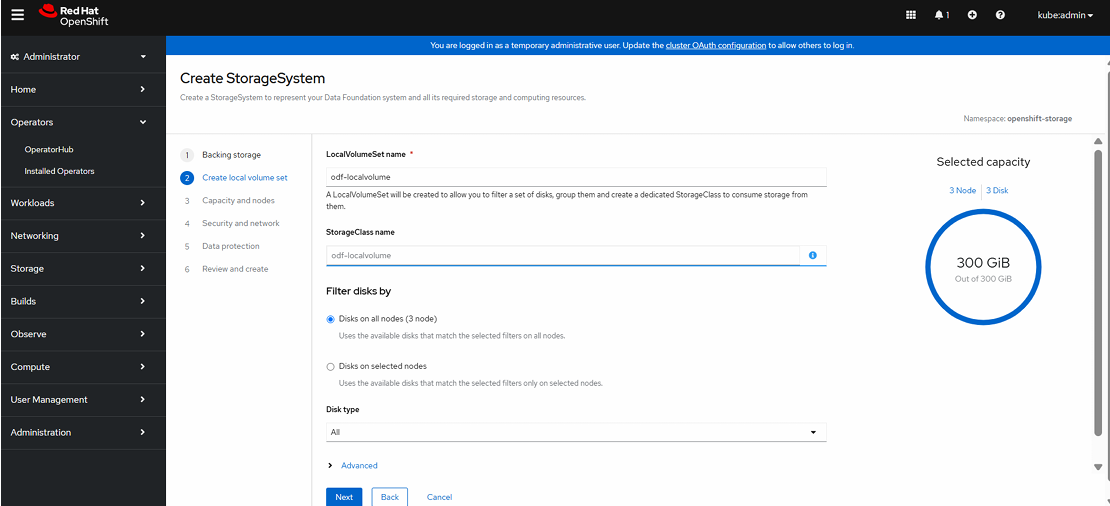
Enter LocalVolumeSet name and click Next.
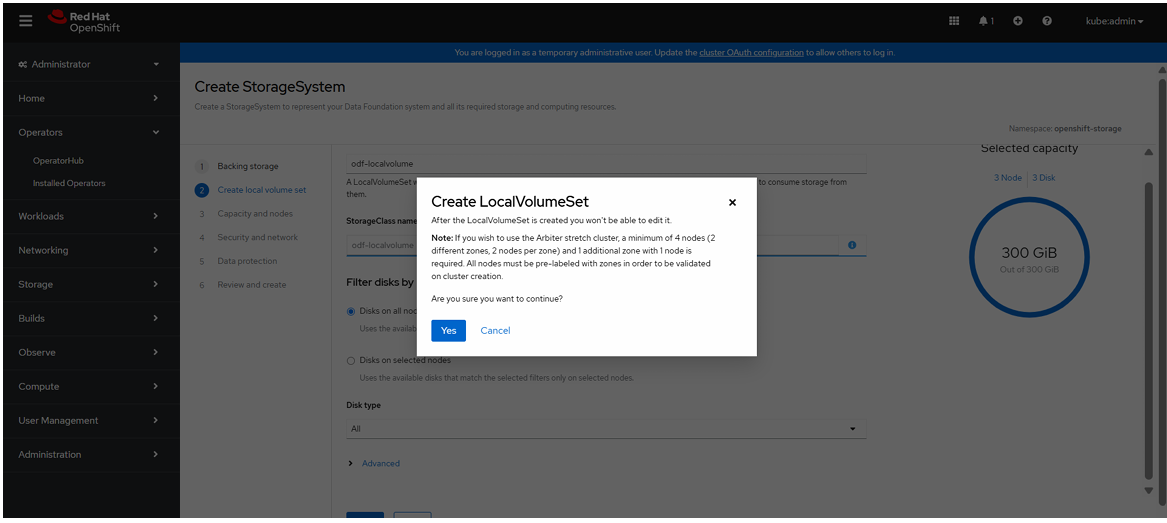
Click “Yes” to create a new LocalVolumeSet.
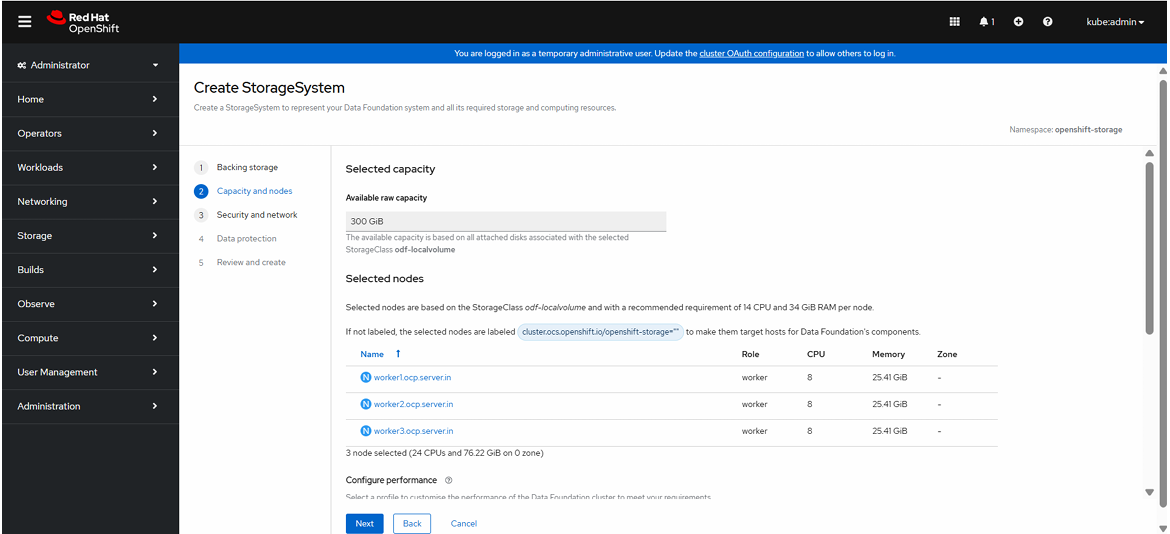
Click Next
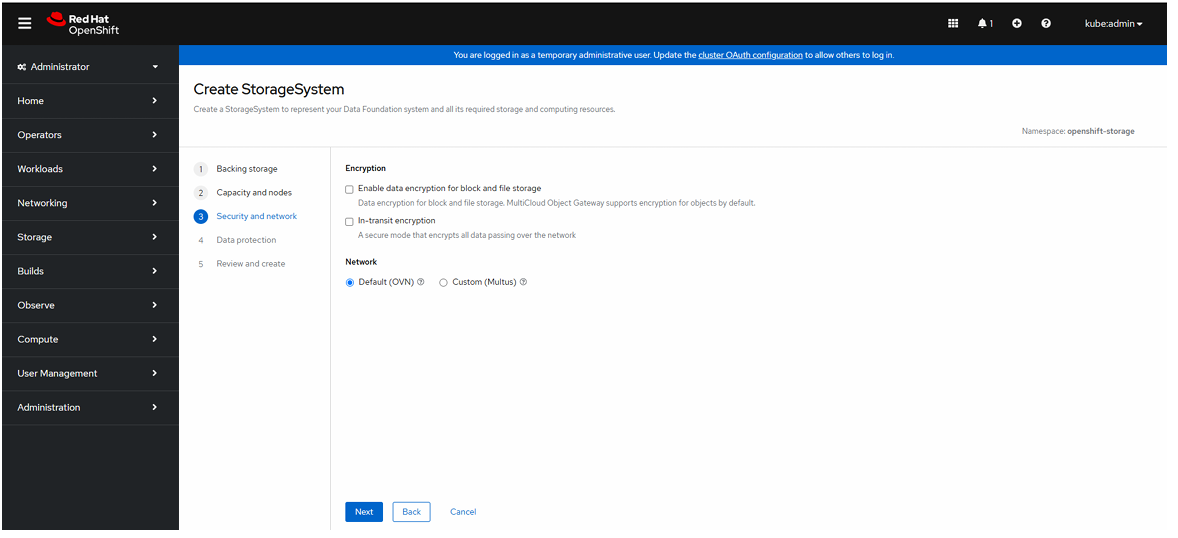
Click Network at Default(OVN).
Review the configuration and click create storage system.
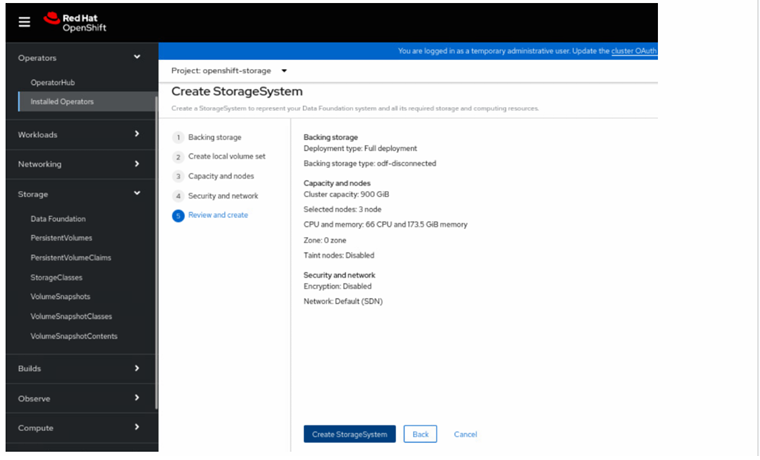
After Click CreateStorage System necessary pods will be created under openshift-storage name space.
See the storage system creation status in GUI.
To verify storage system status is “Ready” state.
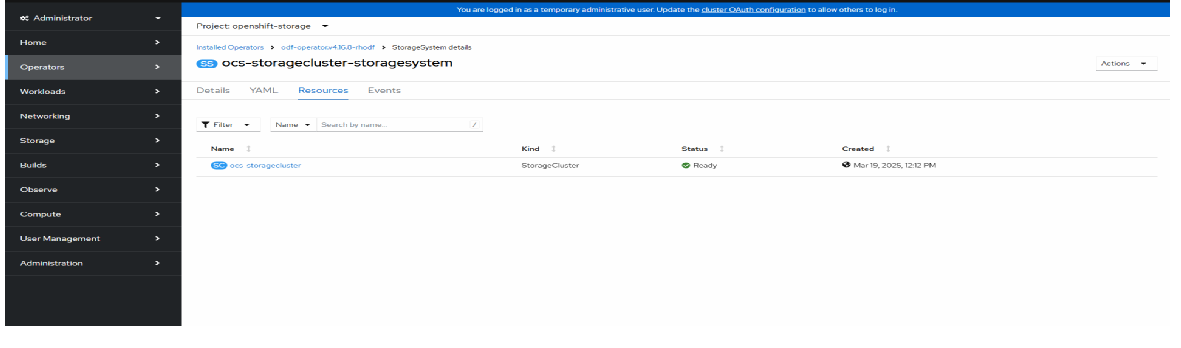
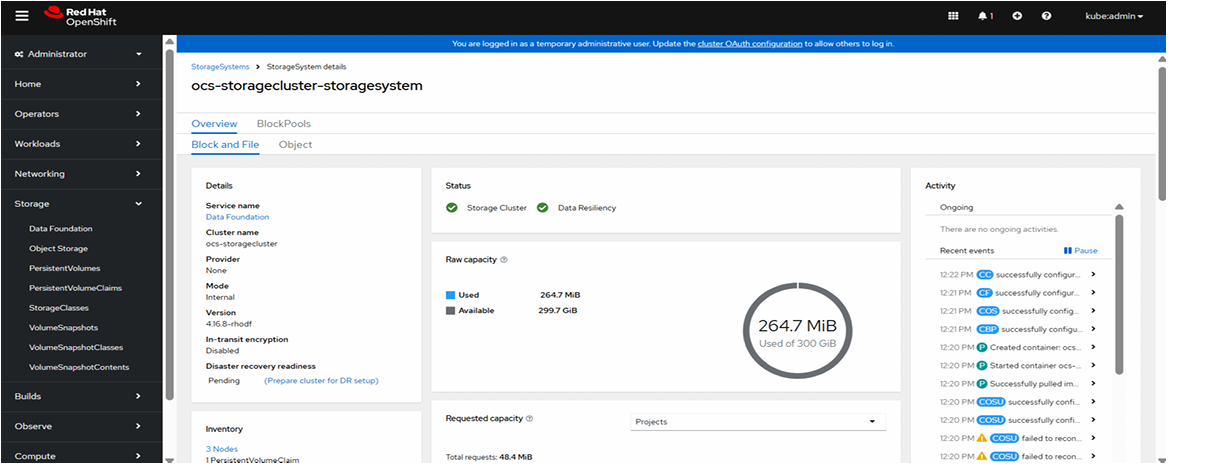
To see the Storage System status in the GUI console.
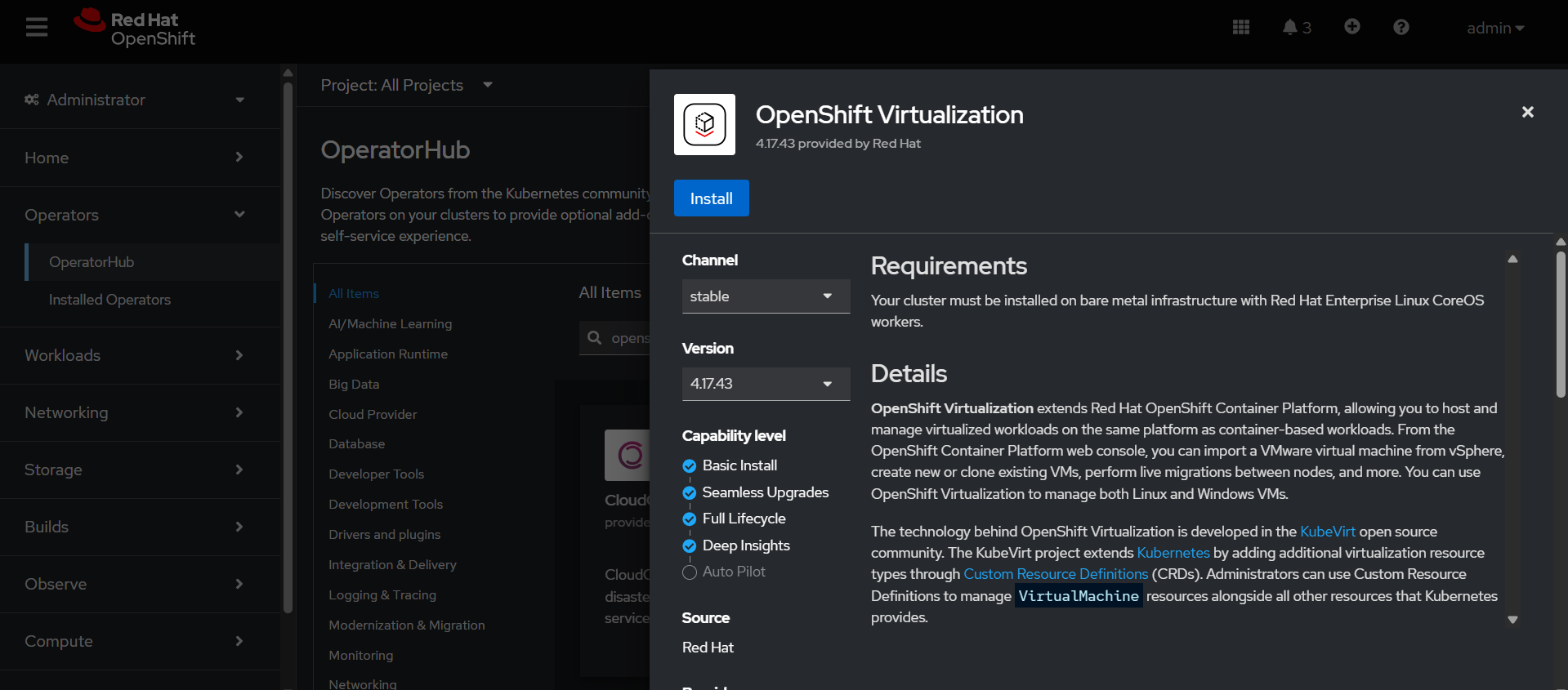
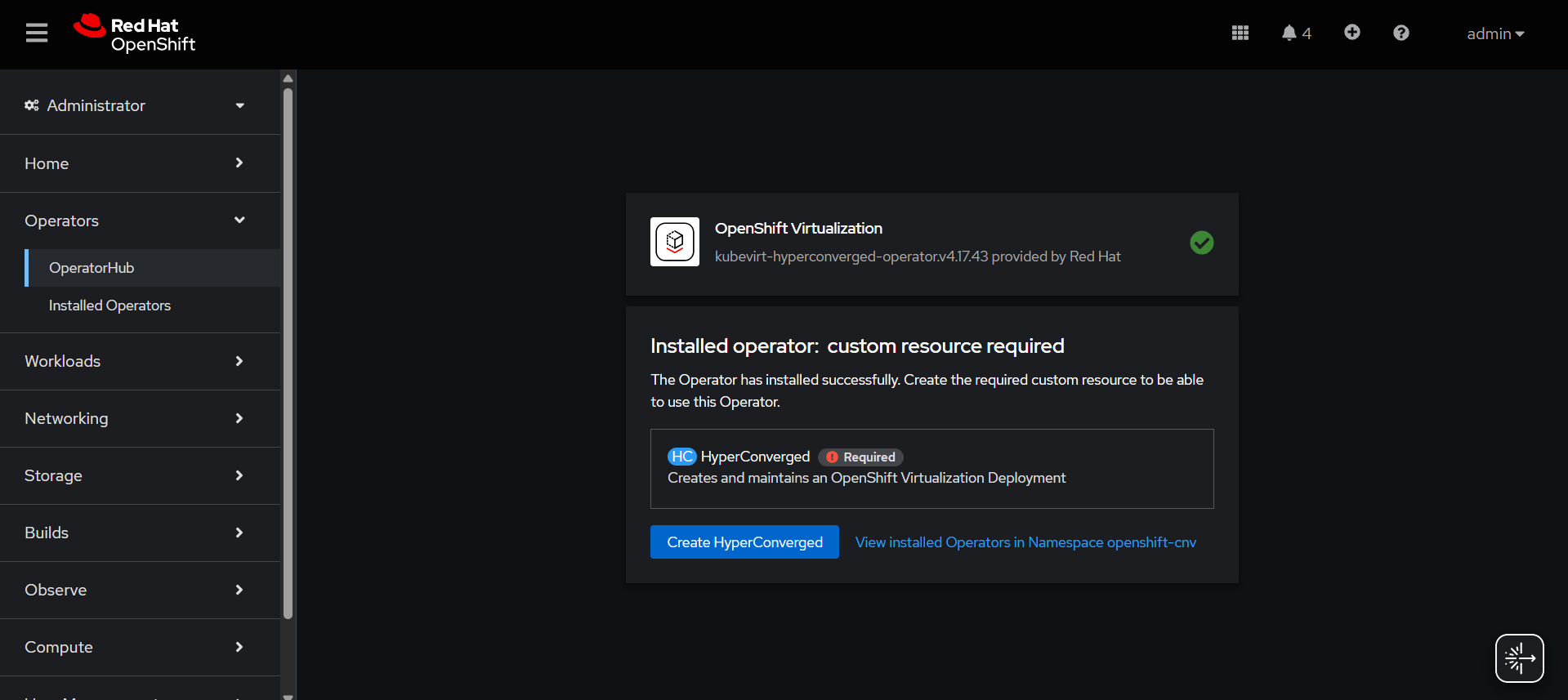
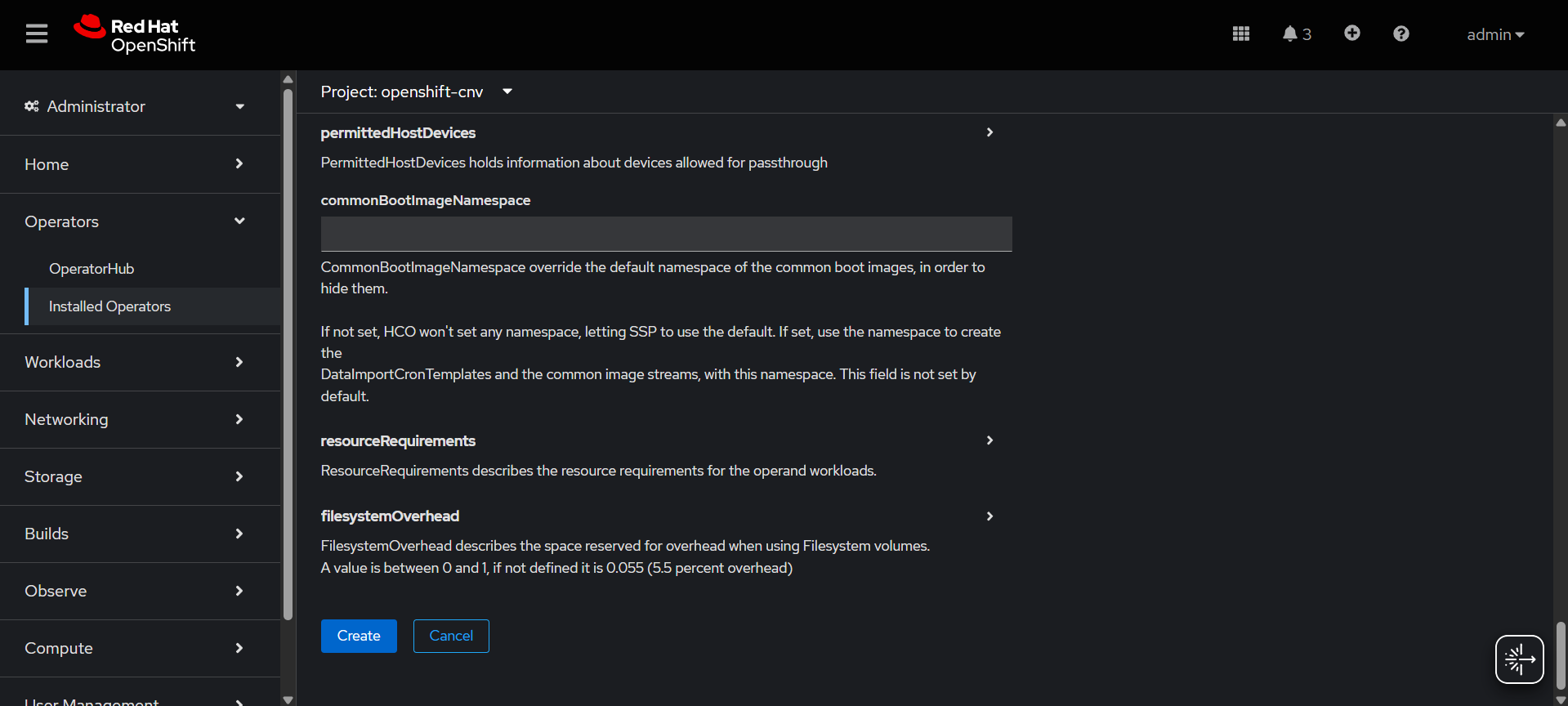
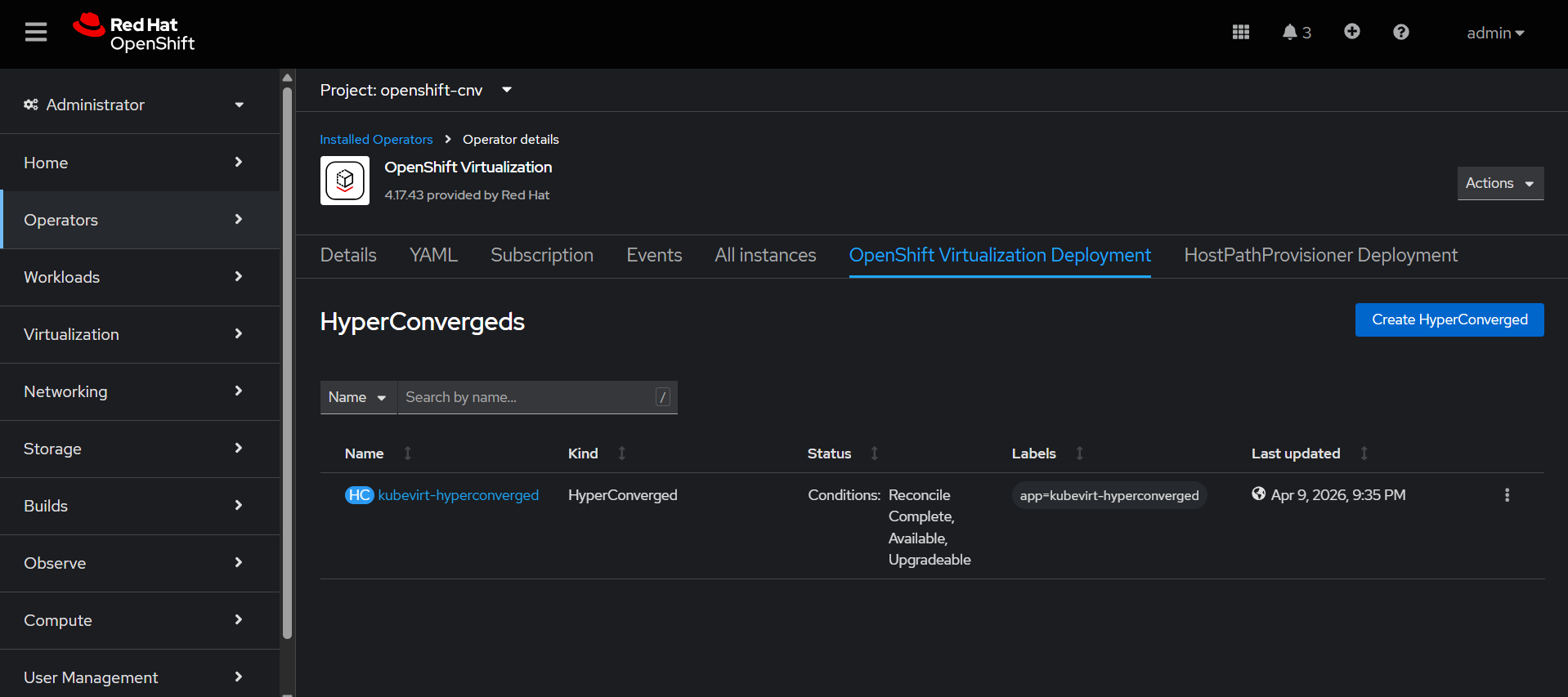
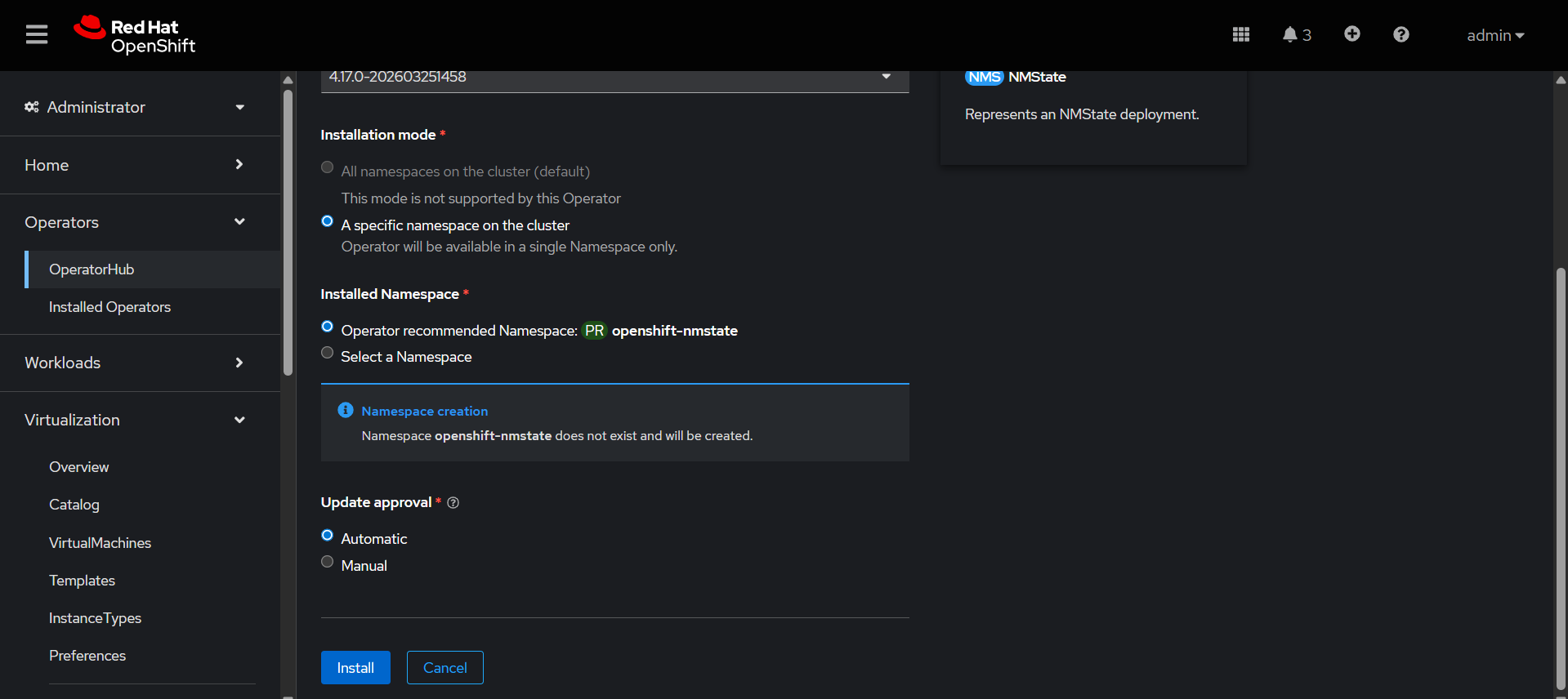
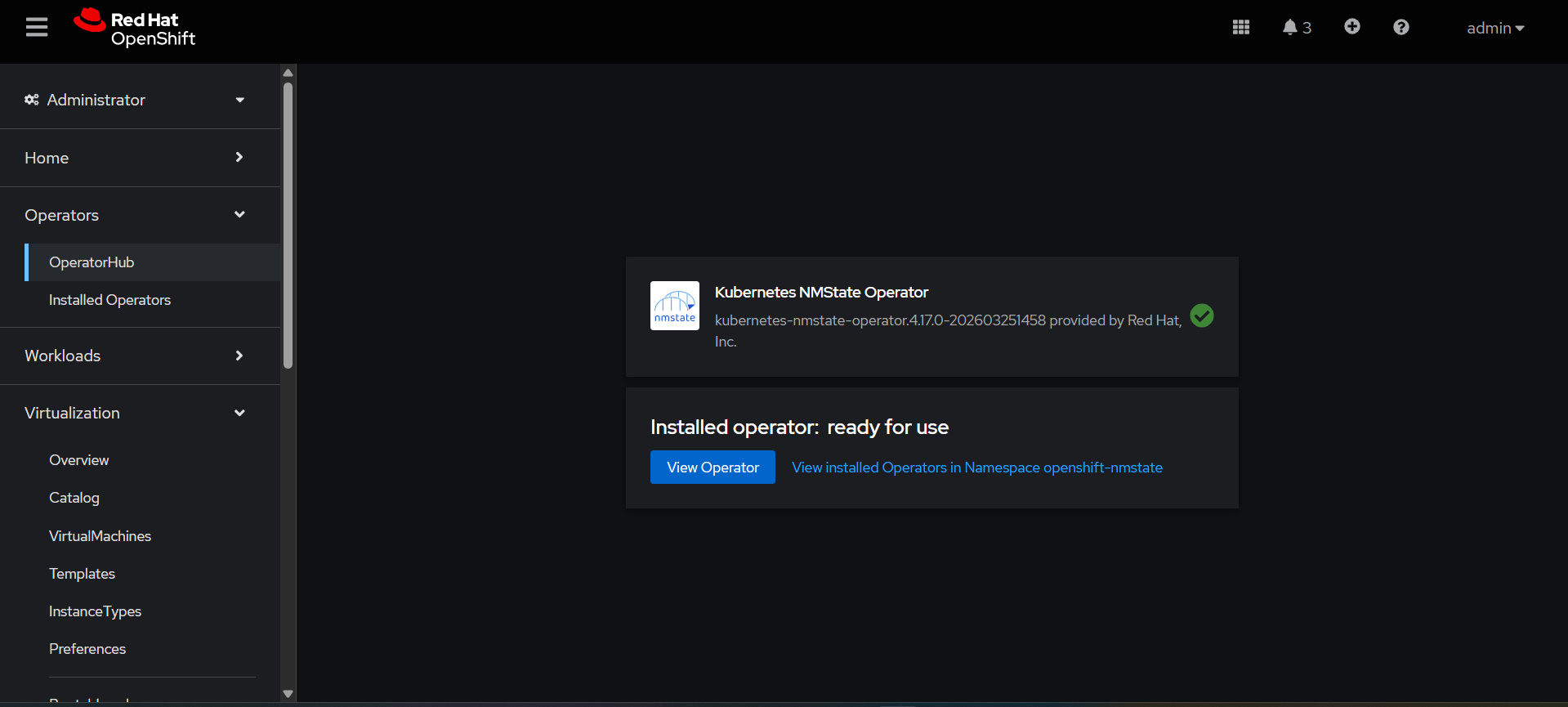
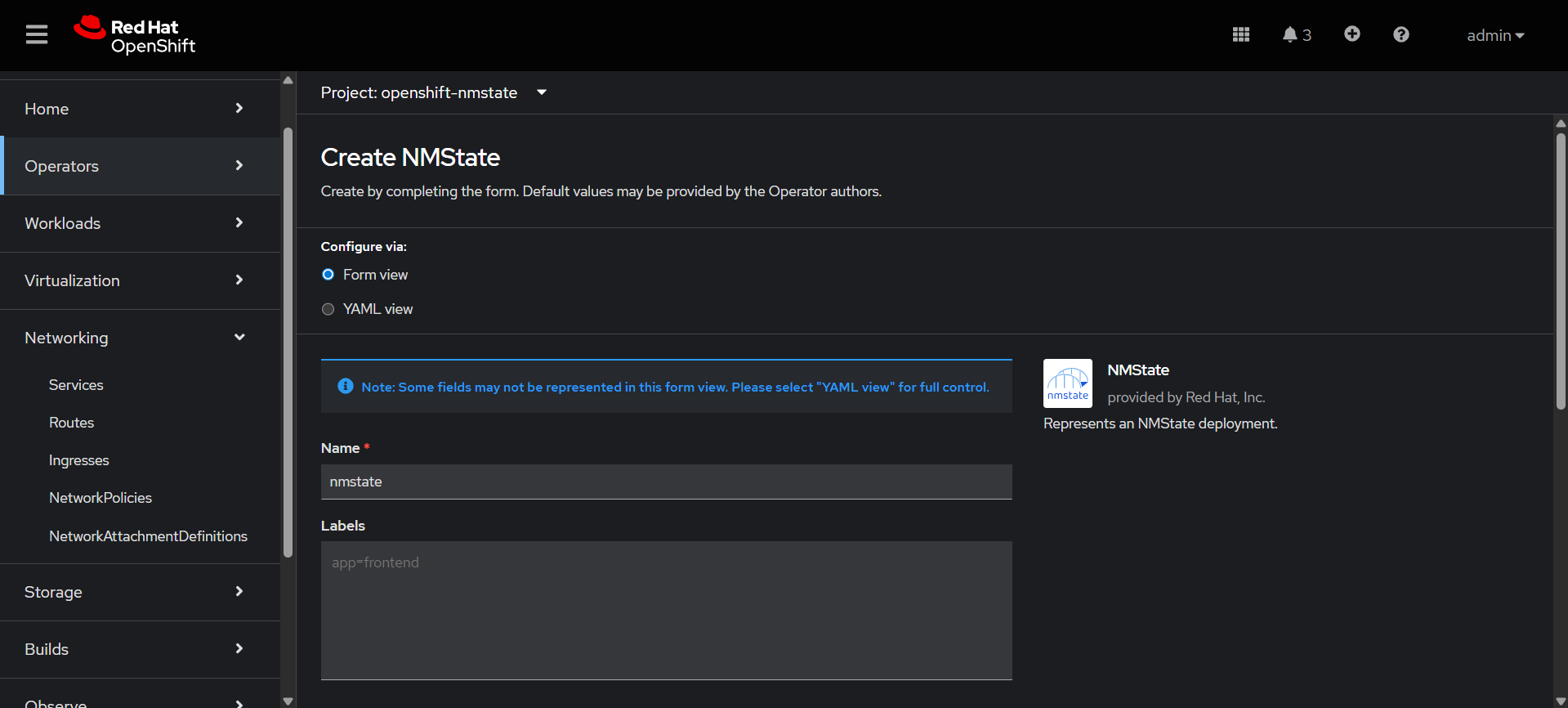
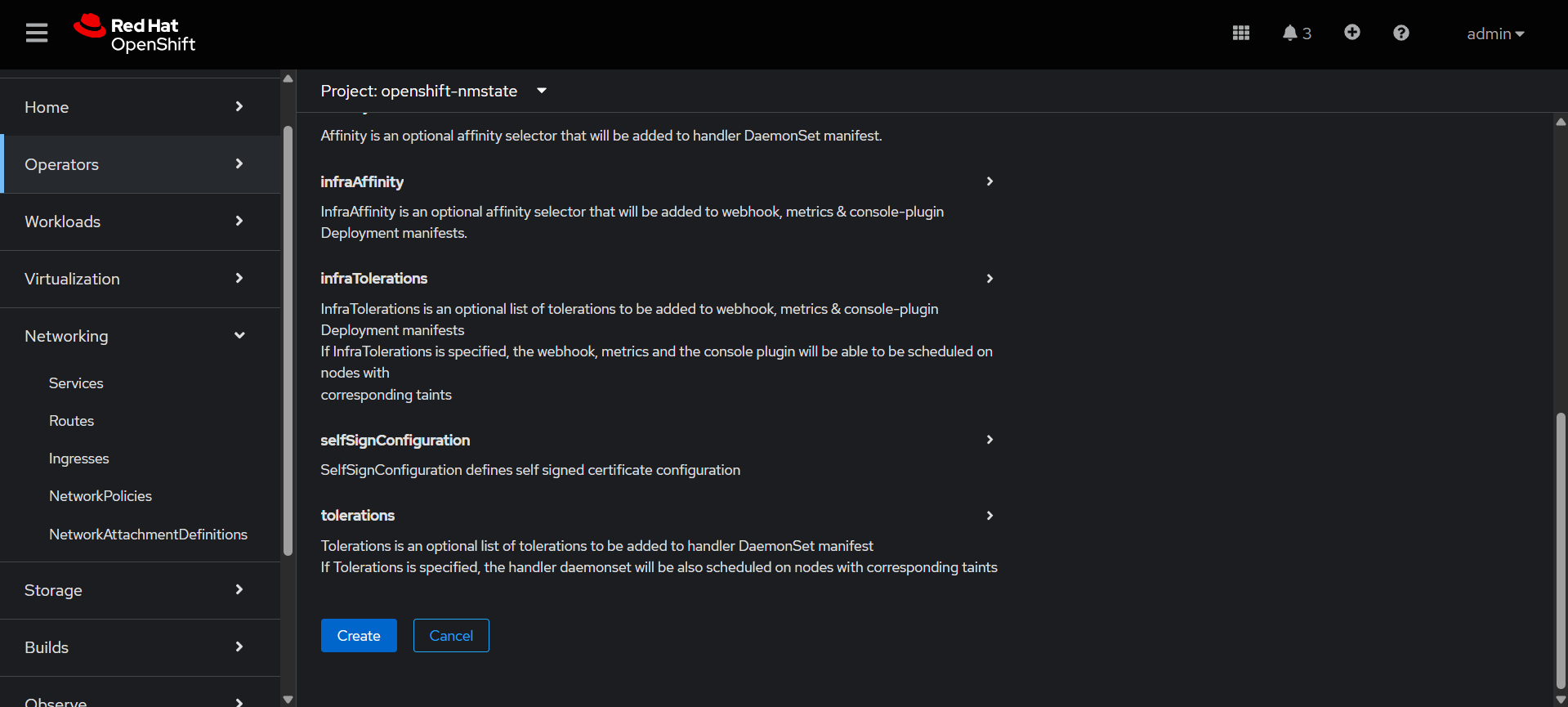
Openshift Virtualization Configuration
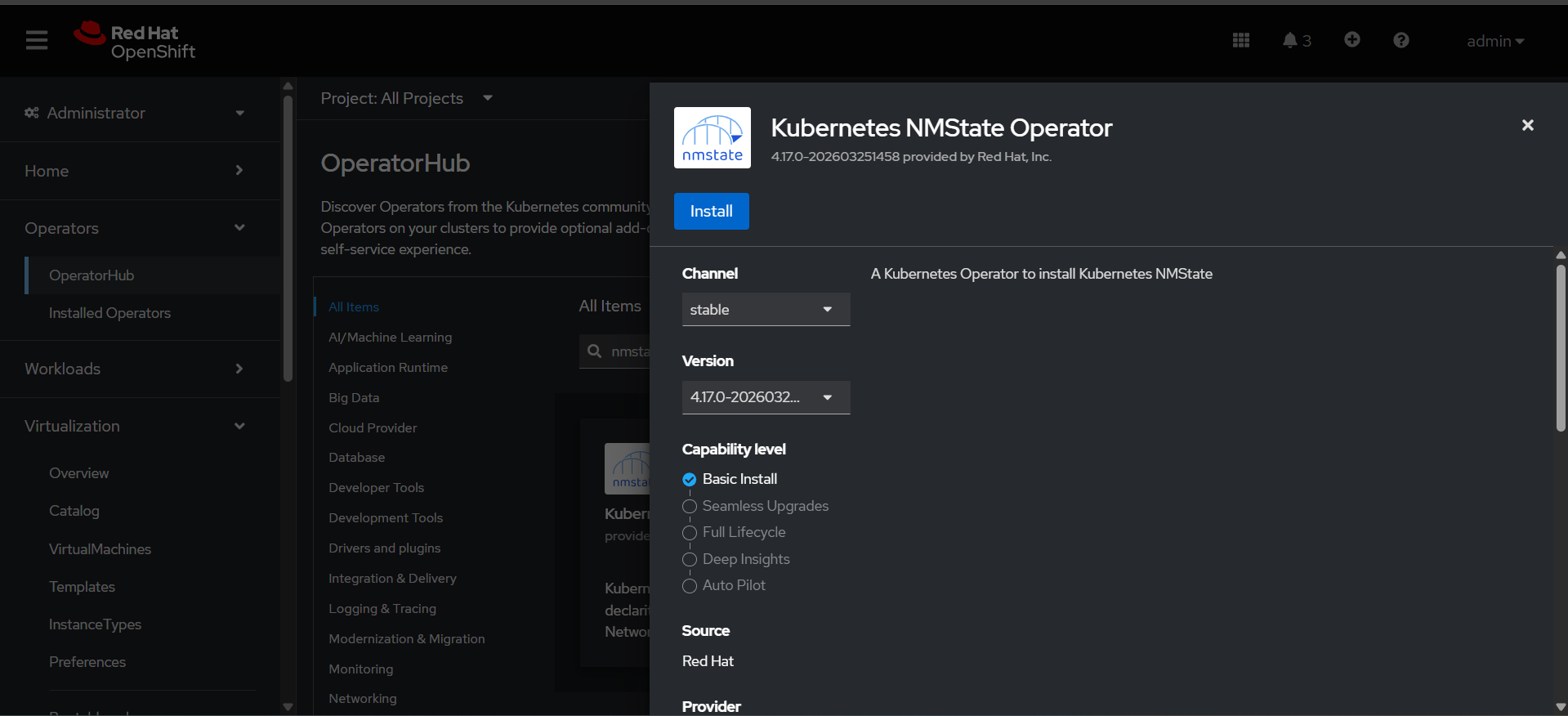
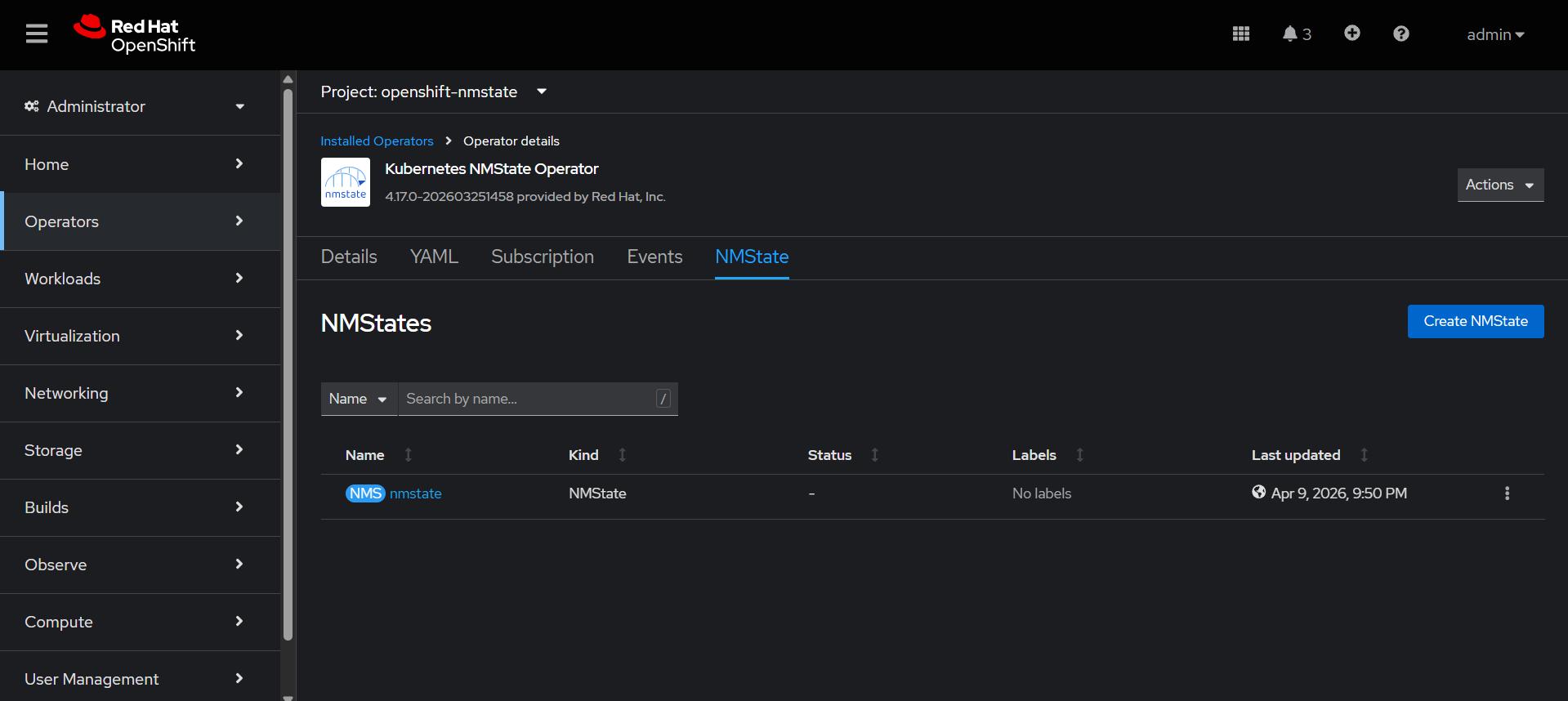
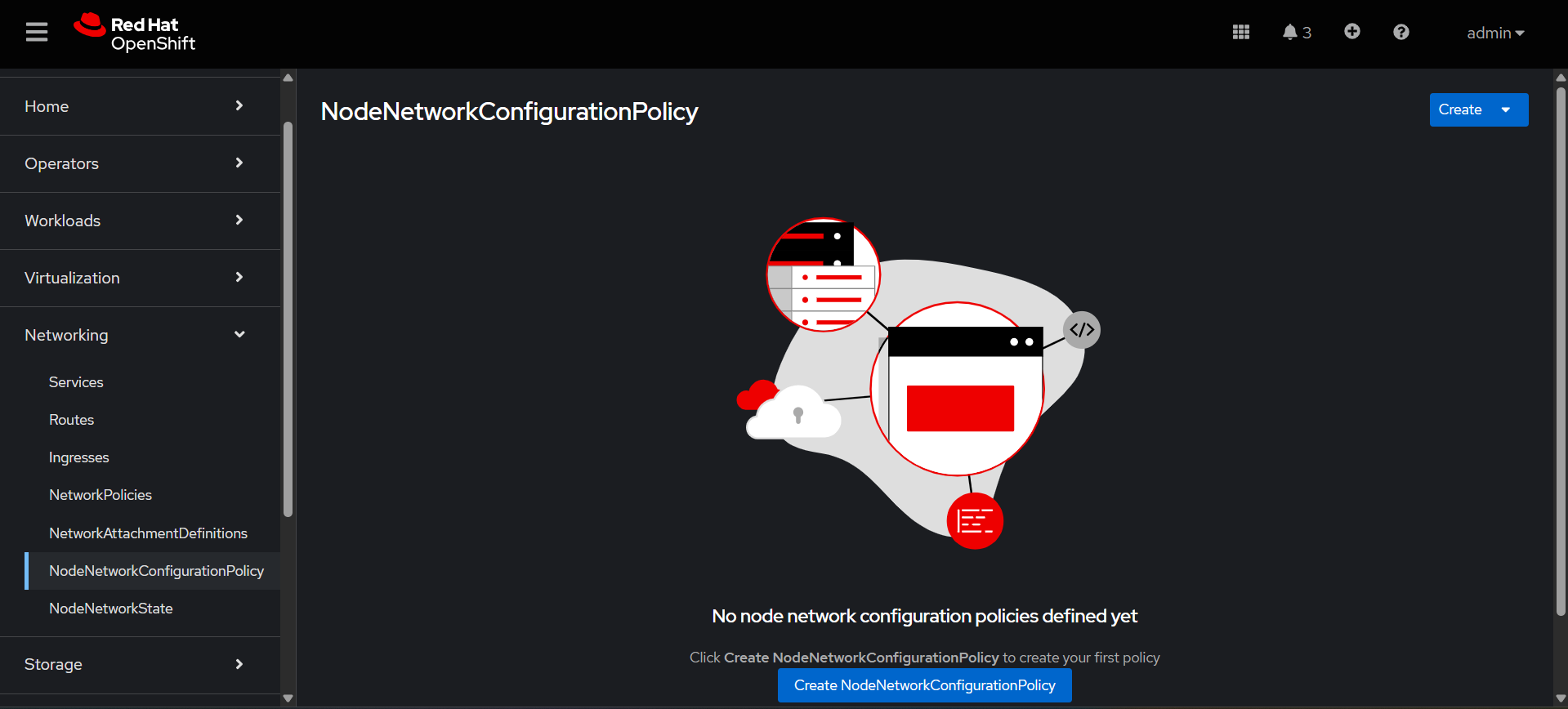
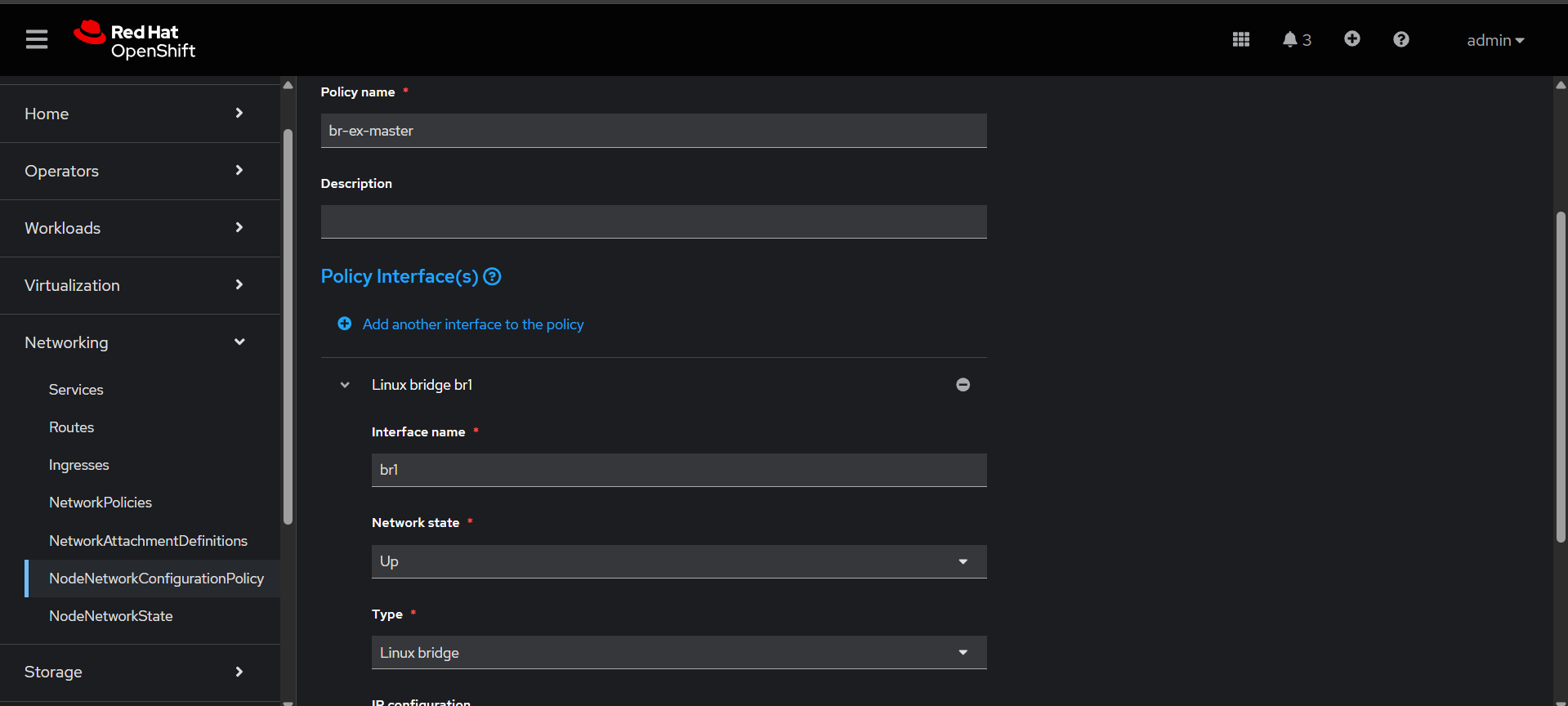
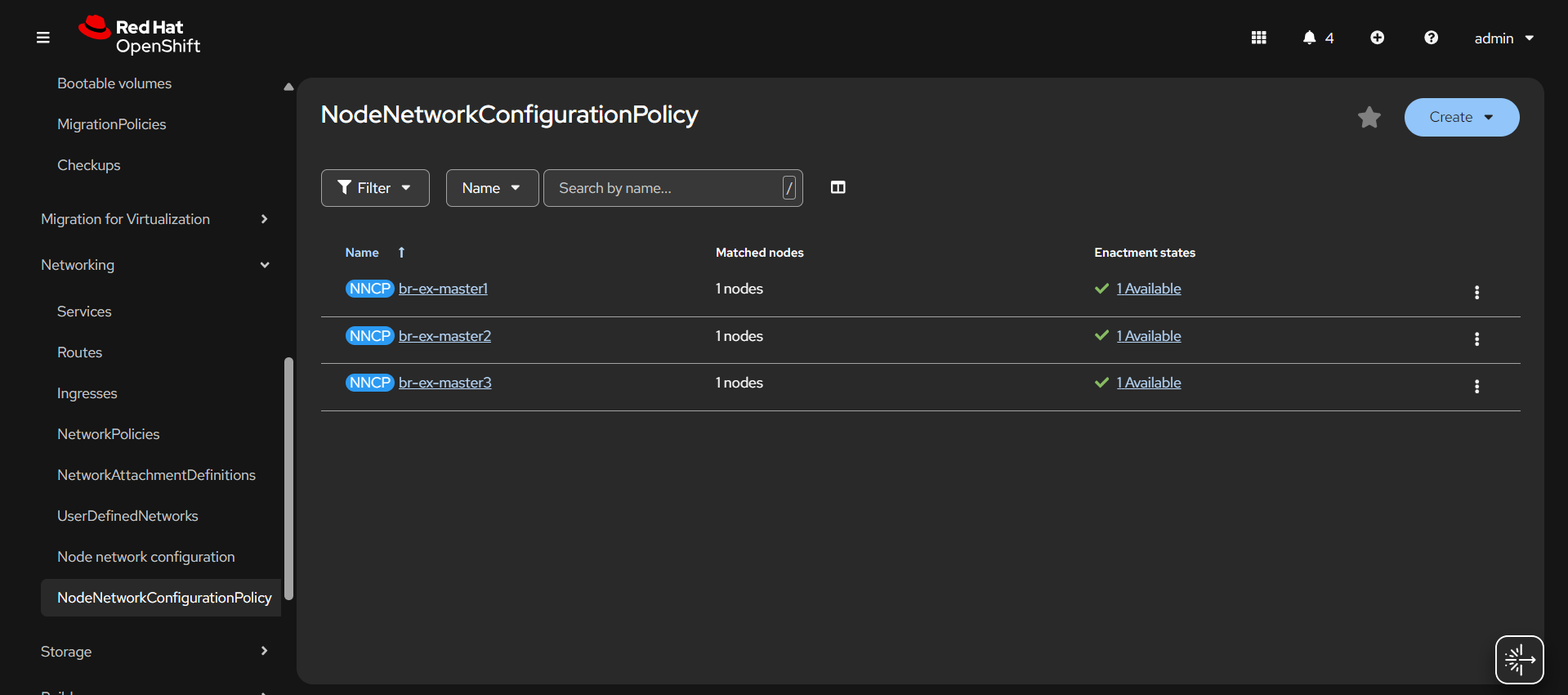
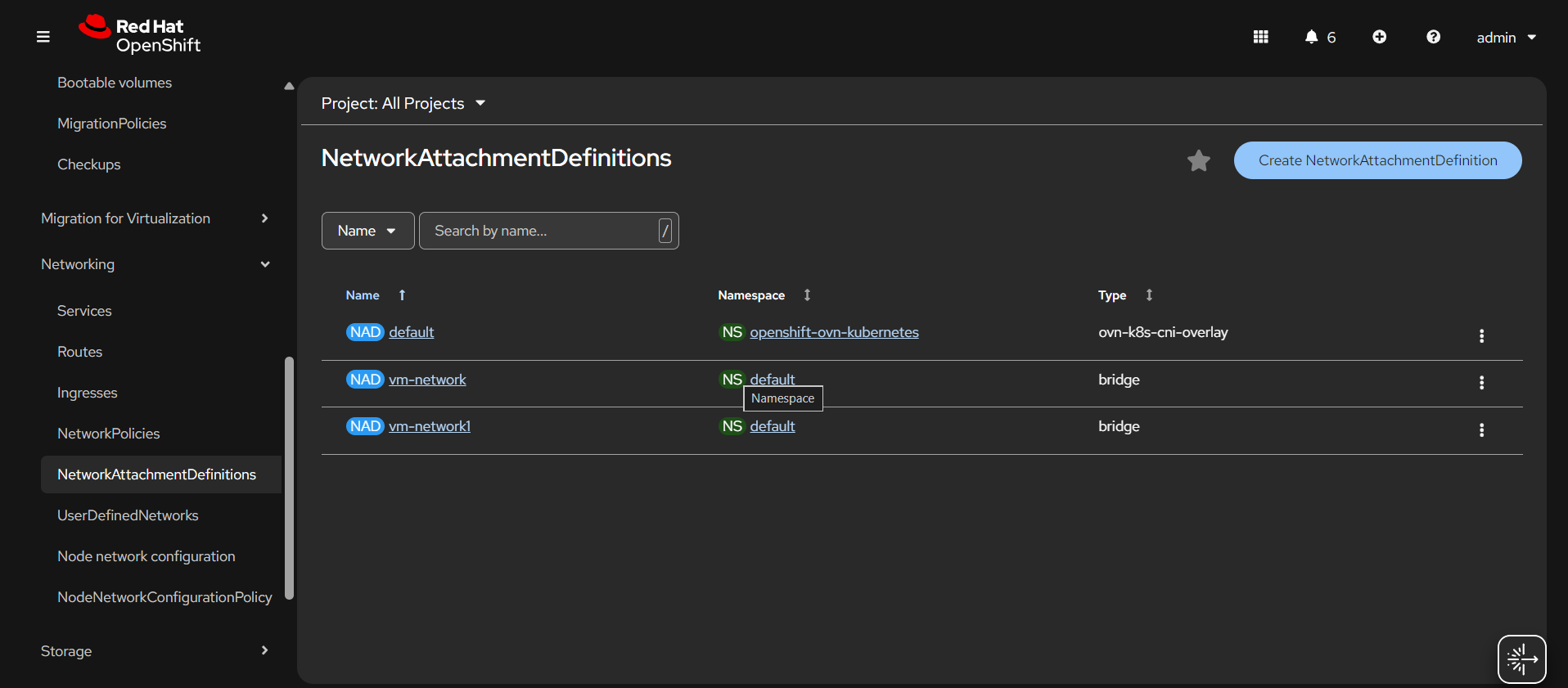
NAD


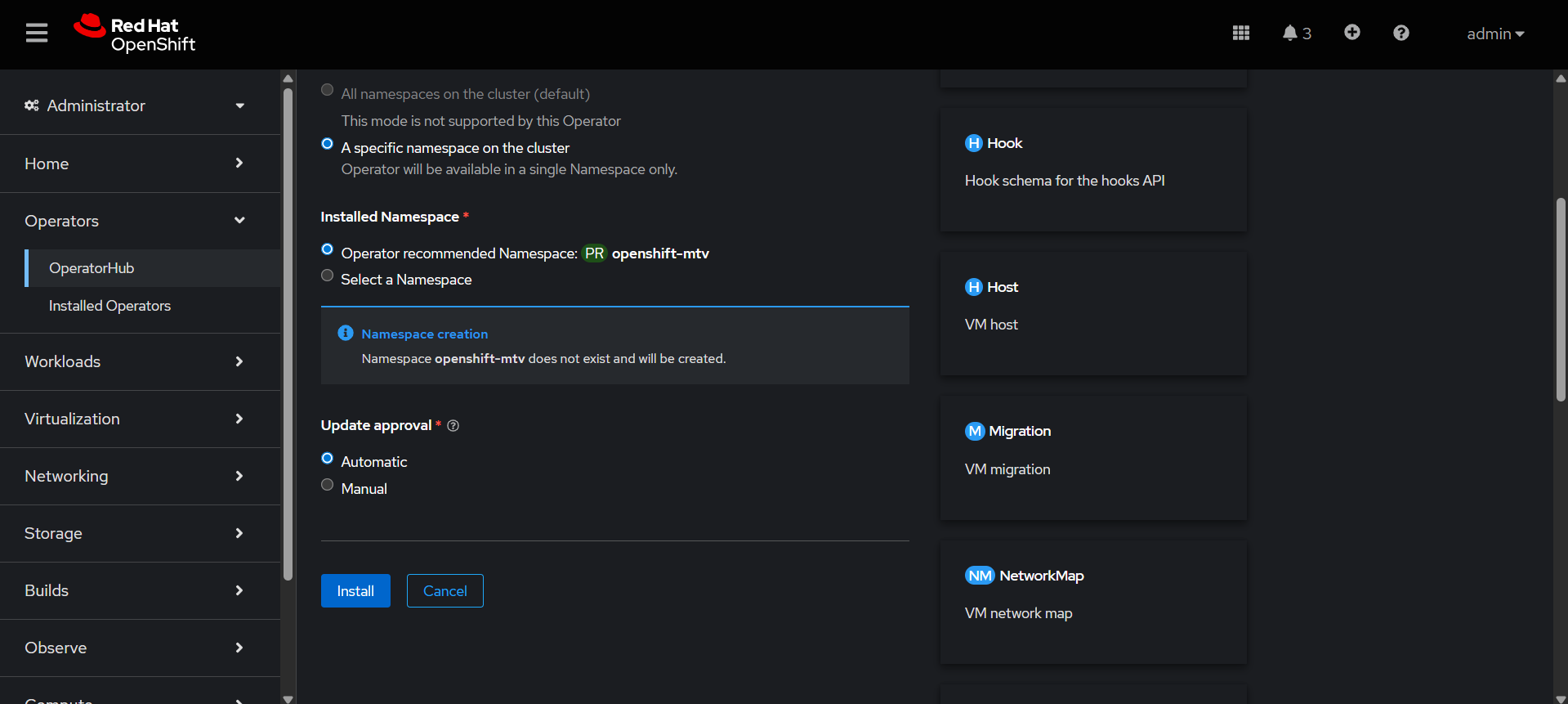
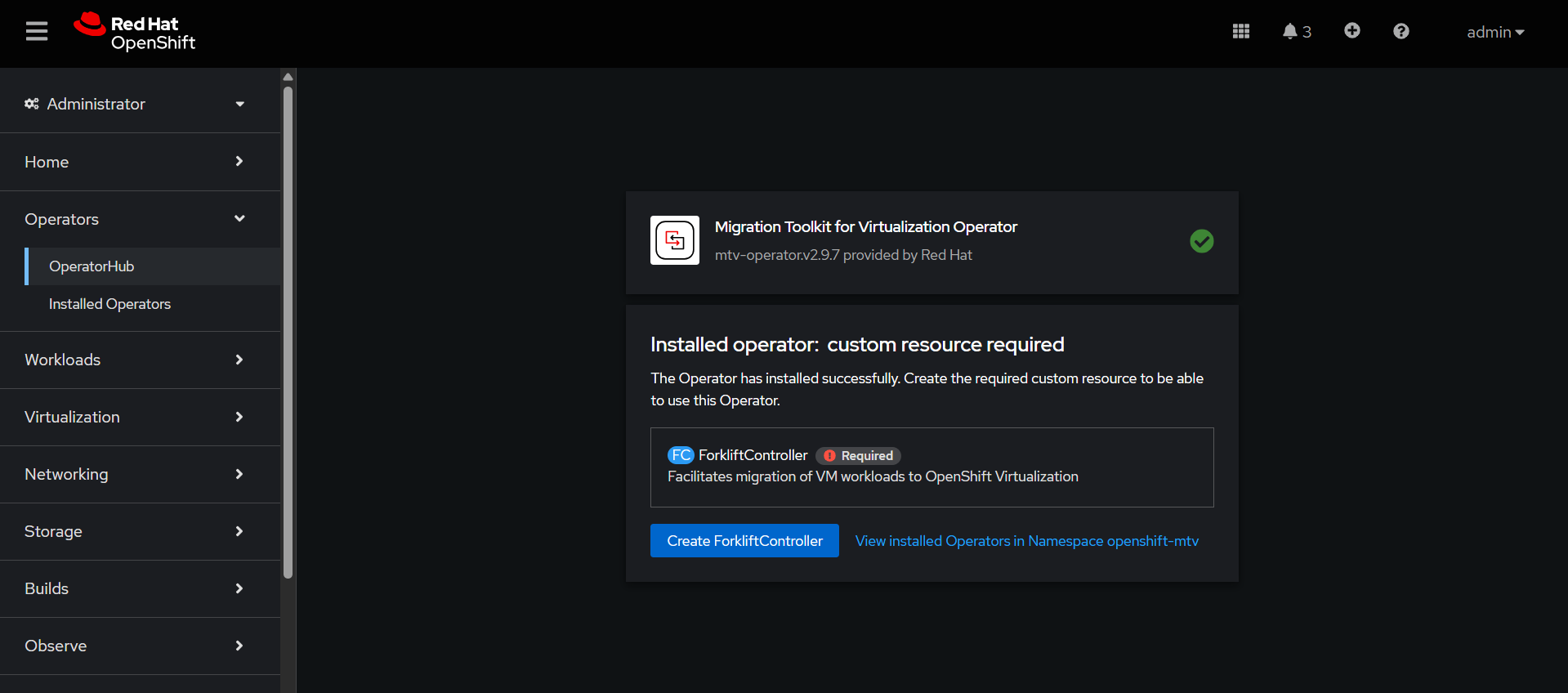
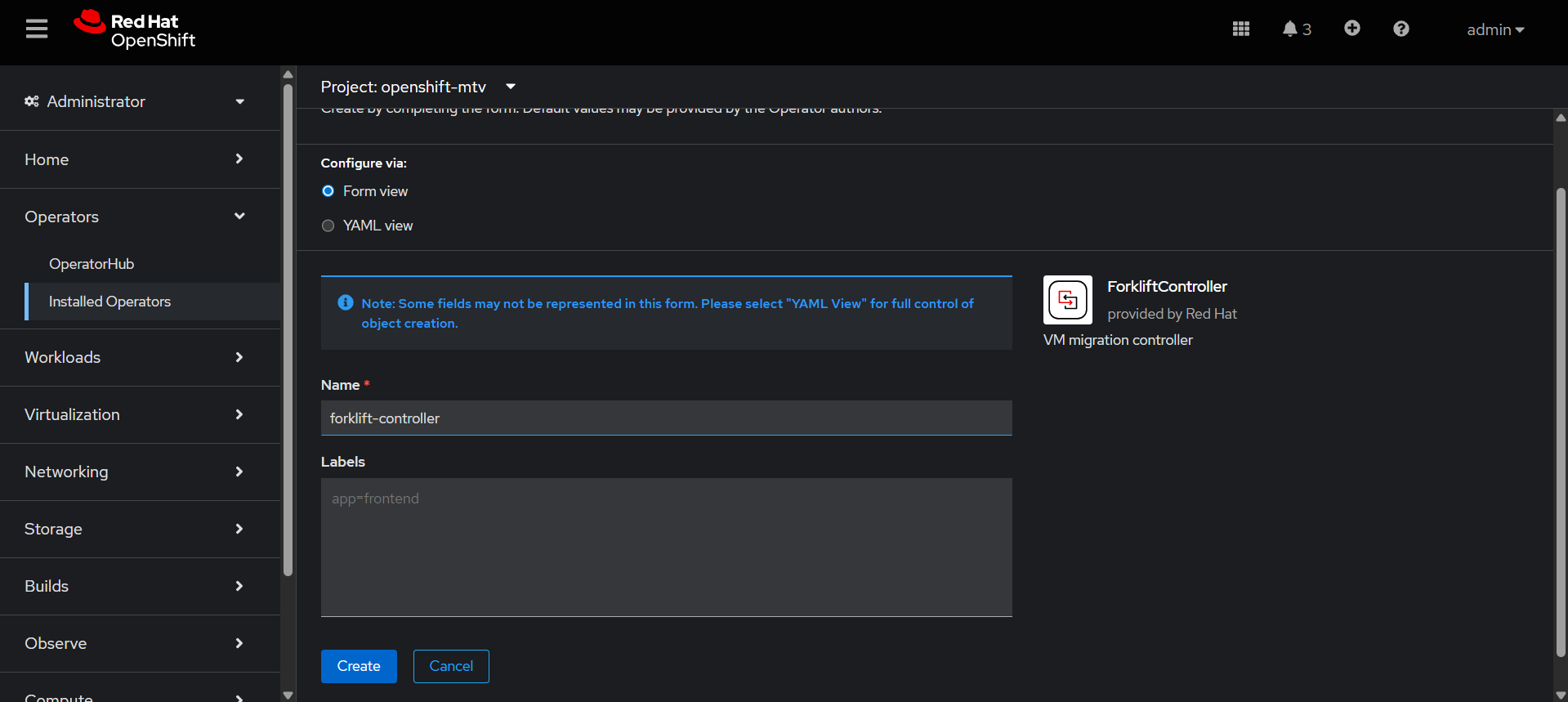
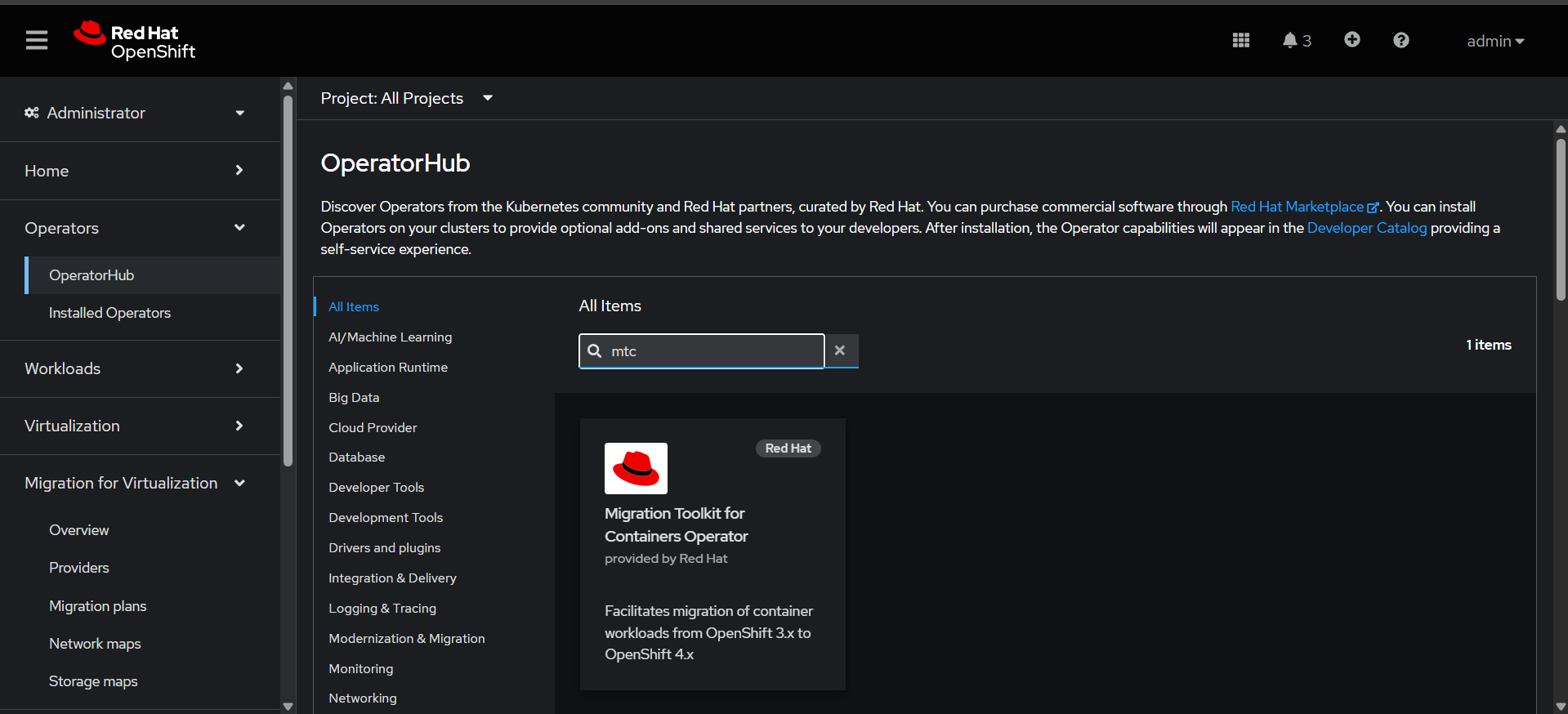
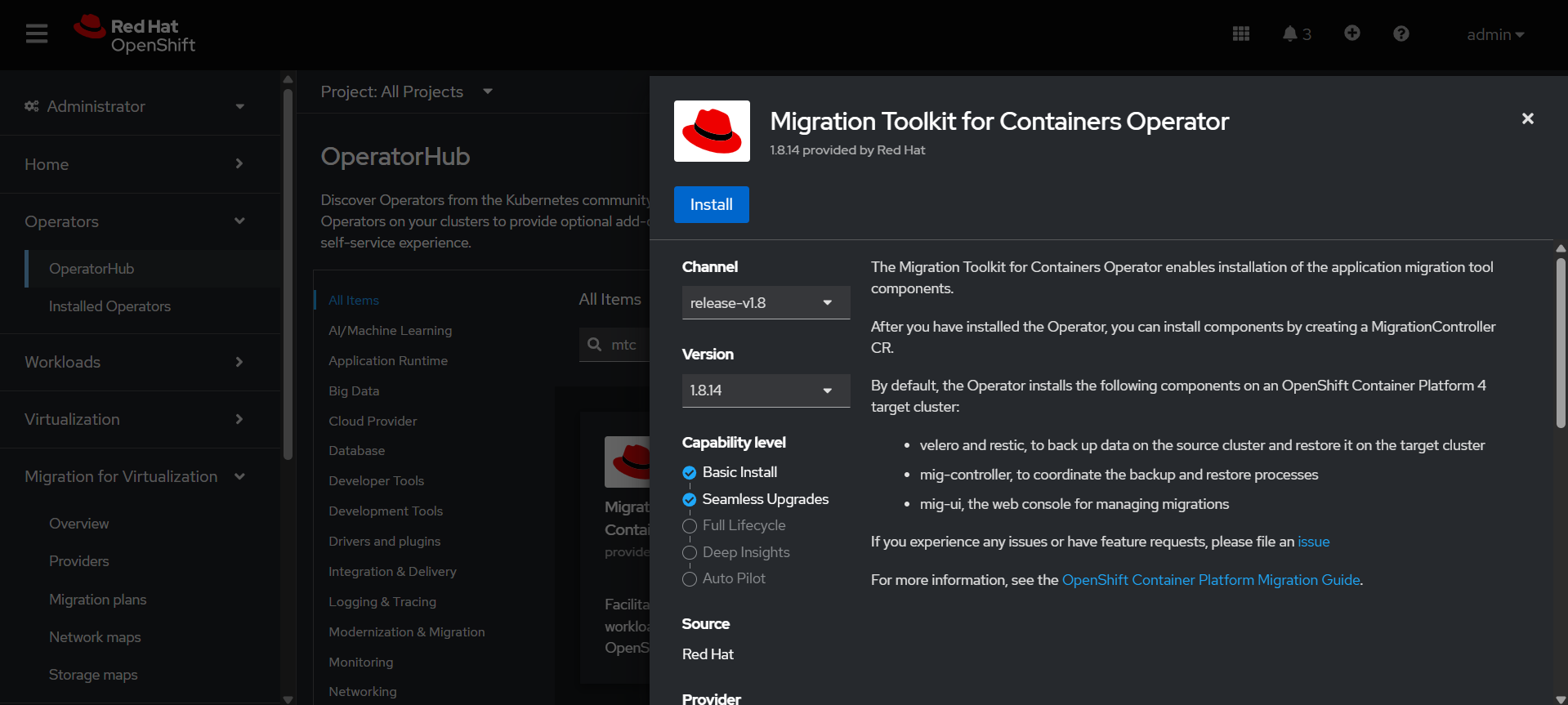
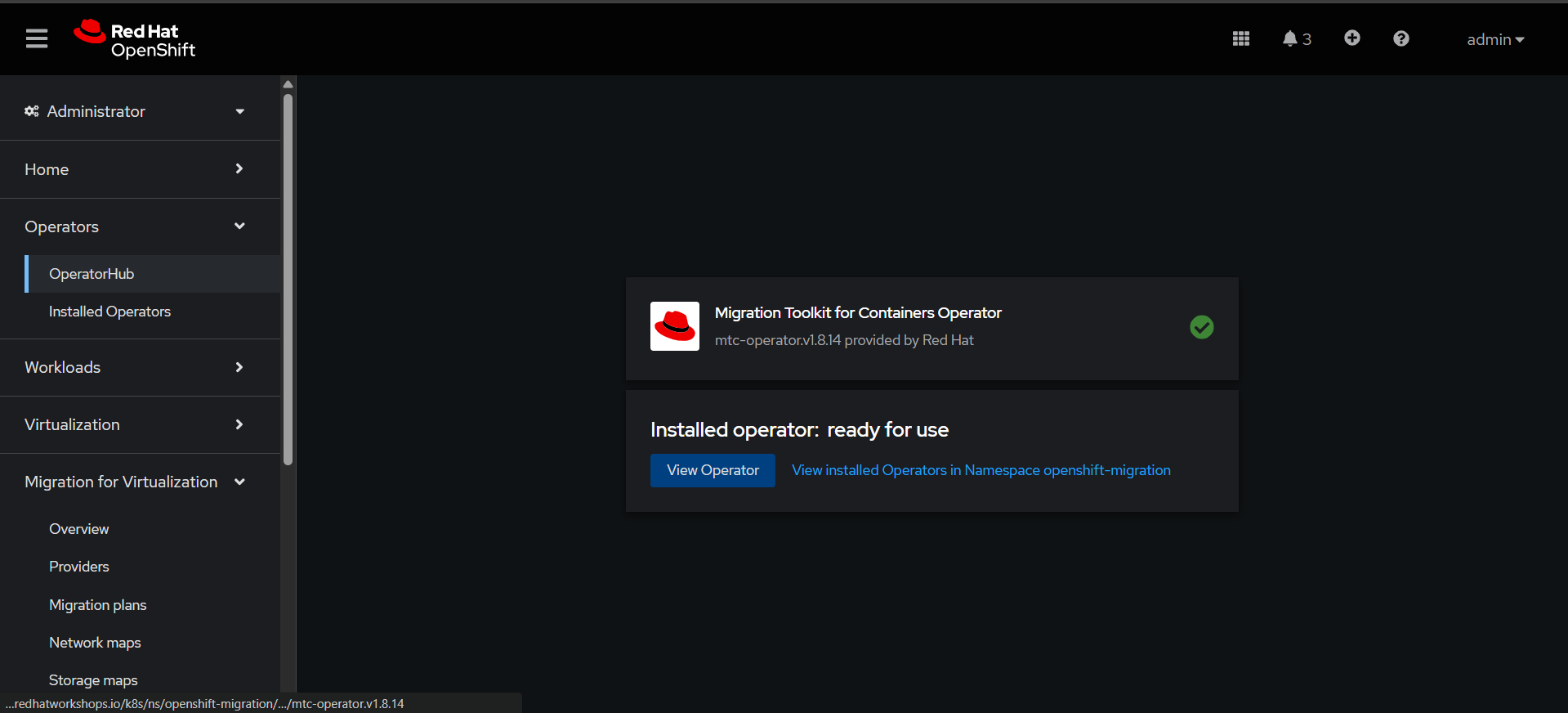
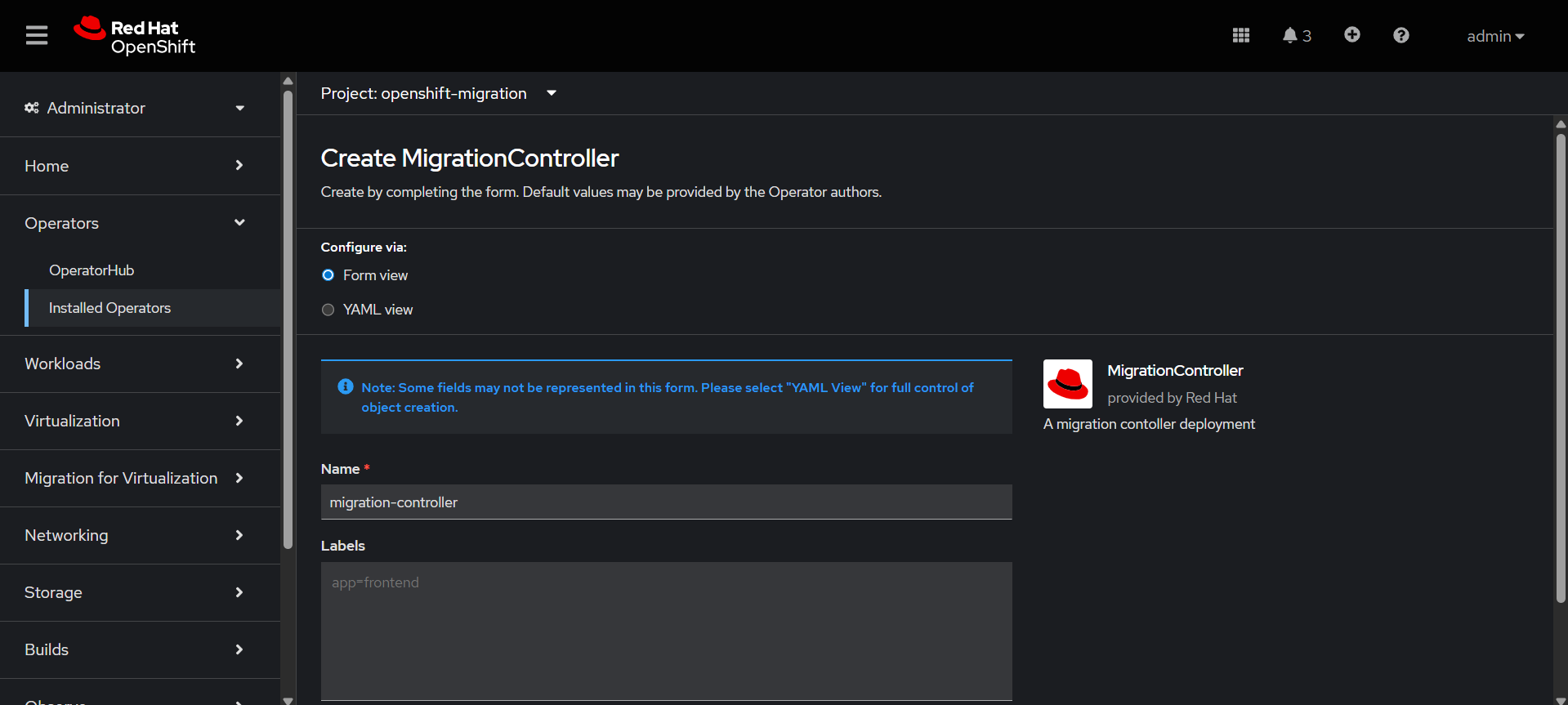
MTC