
Getting Started with iVentura 2.0
This document describes the navigation through the iVentura application, how to create an account, subscribe to iVentura plans, and how to access the iVentura components and services.
Step 1: Go to myaccount-dev1.iventura.ai
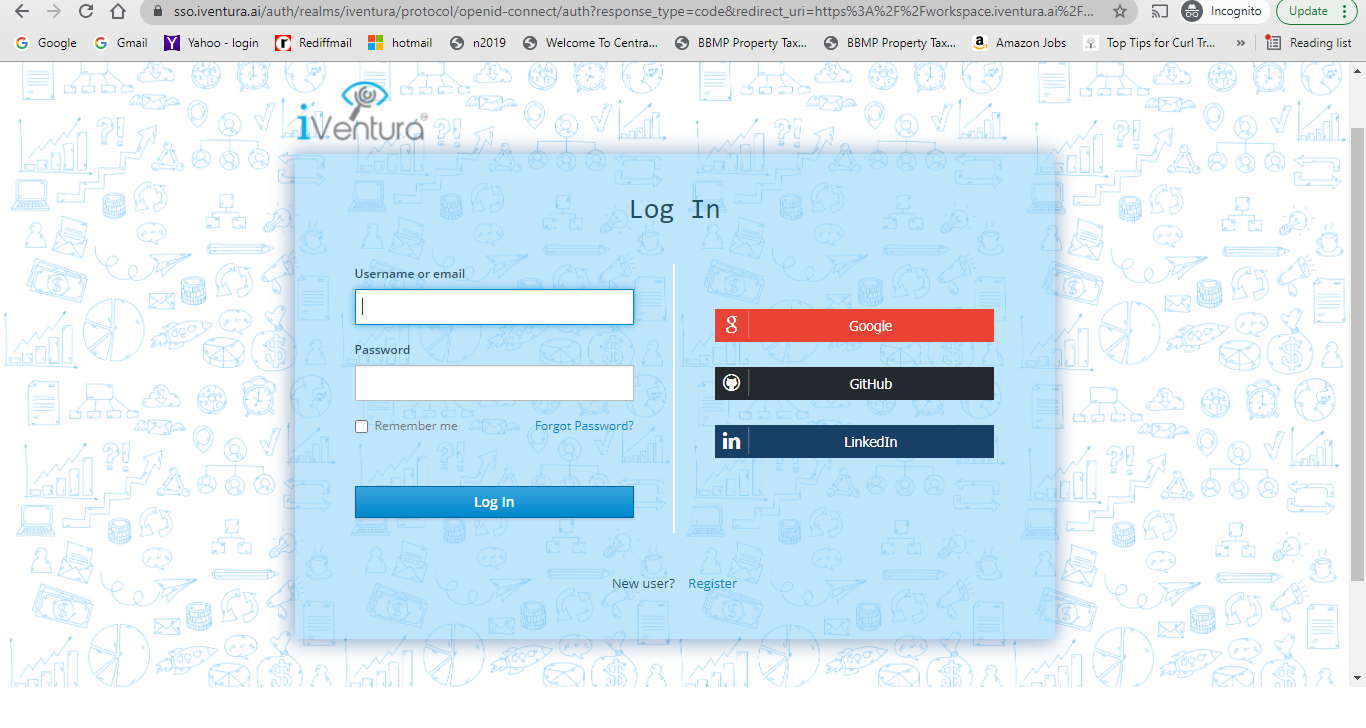
Step 2 : Select the login method of your choice. Google, GitHub, or LinkedIn.
You can manually register by clicking on the ‘Register’ button down below.
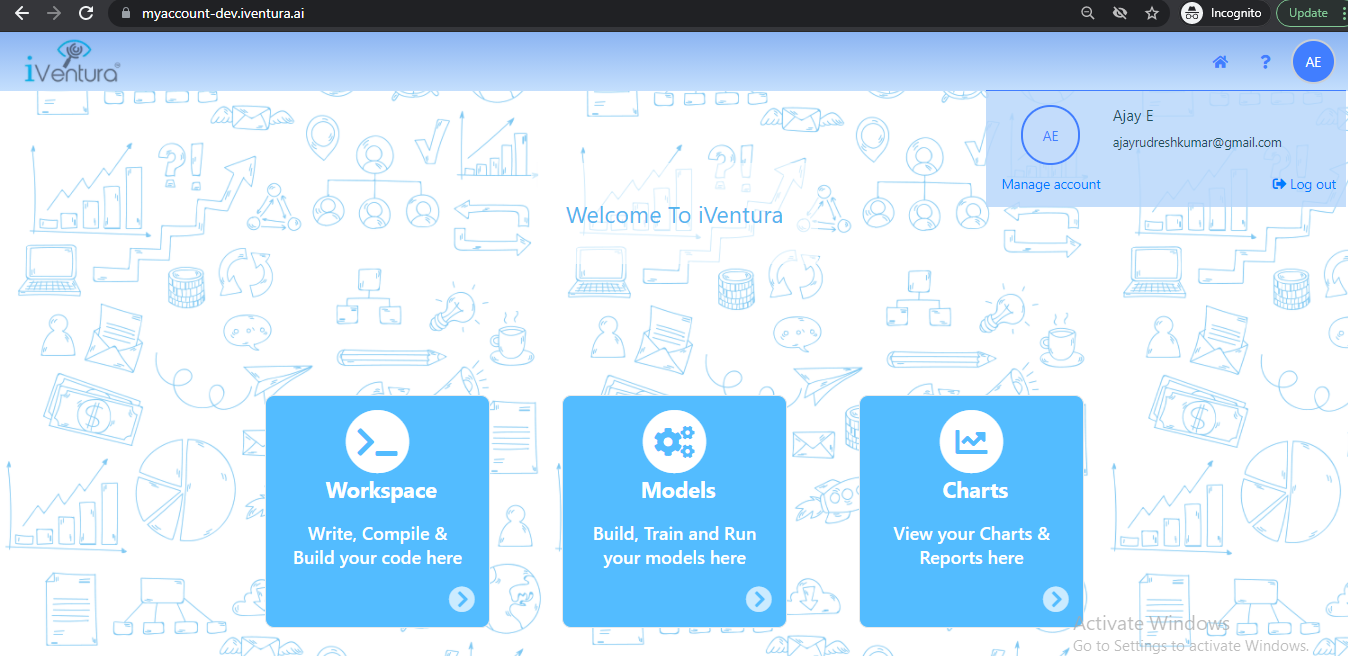
Step 3 : On successful completion of your login, you can edit your other details by clicking on the icon on the top right corner which has your initials.
Step 4 : Click on ‘Manage Account’ to view/edit your details and also buy the current subscription plan.
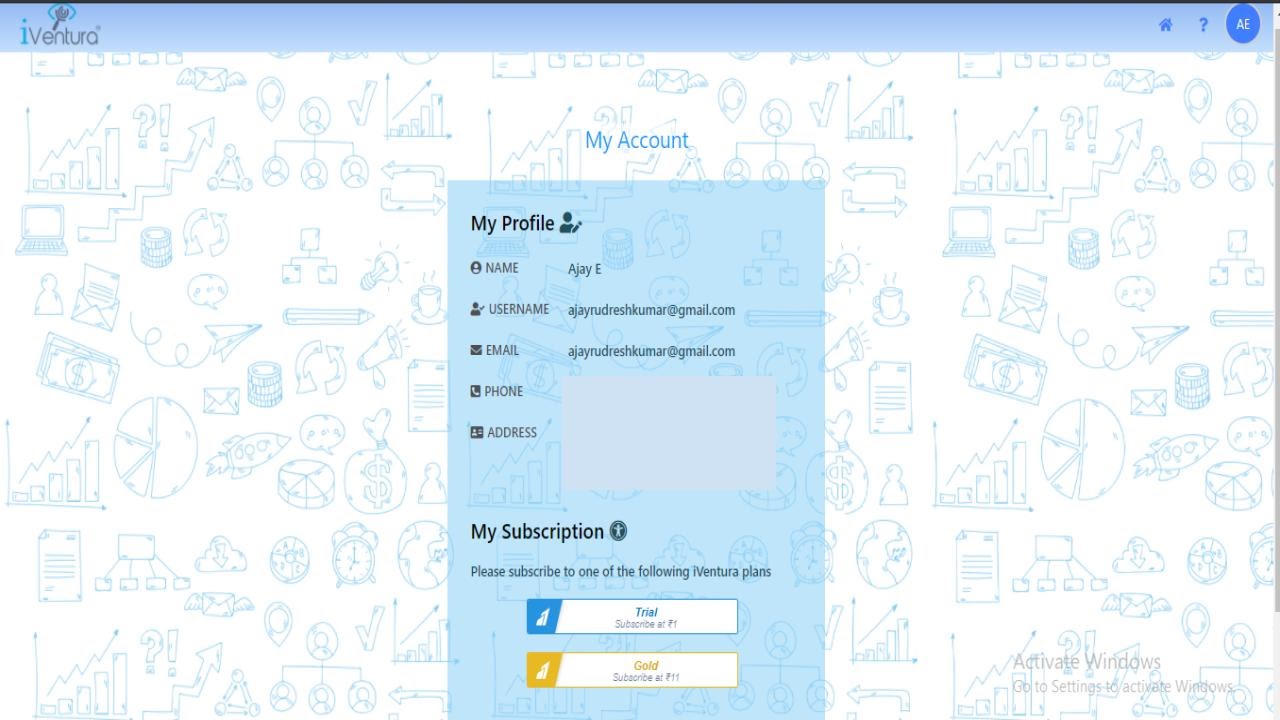
Click on the icon next to ‘My Profile’ to update your details.
Step 5: Choose a plan of your choice between Trial and Gold
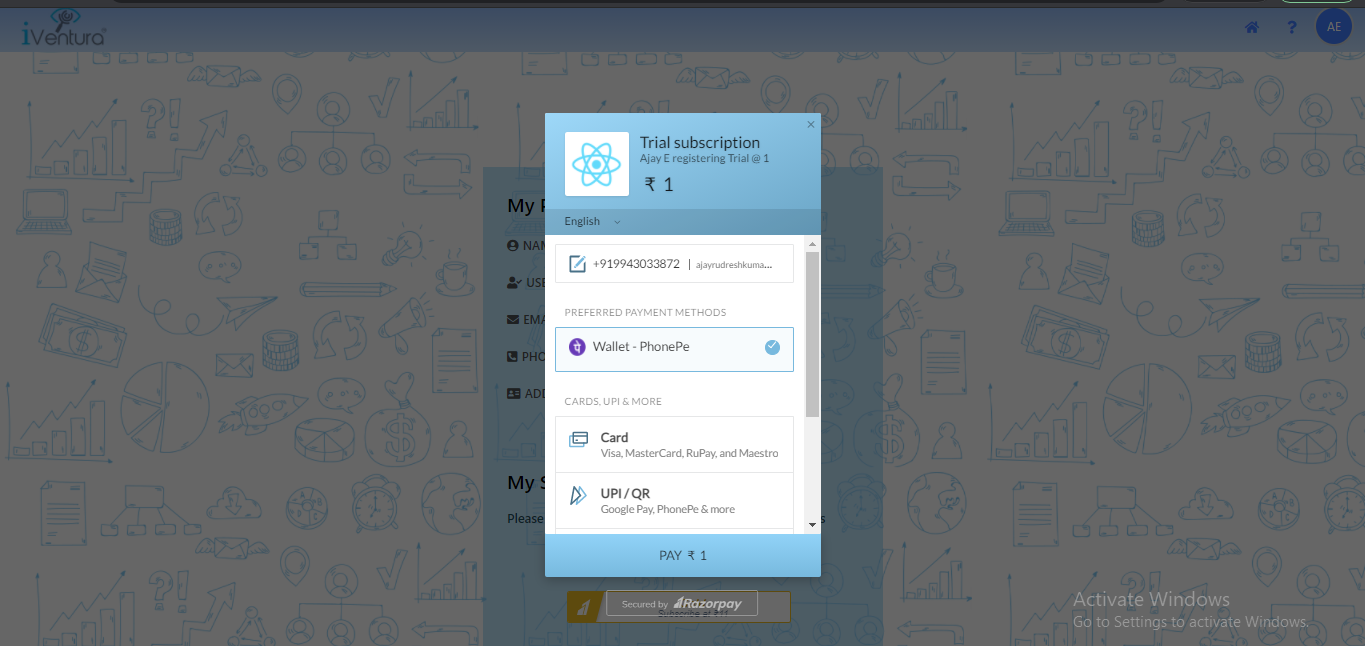
You can use any of the payment methods to subscribe to the plans.
Step 6: Once you have edited your details and selected a plan, click on the Home button to come back to the homepage.
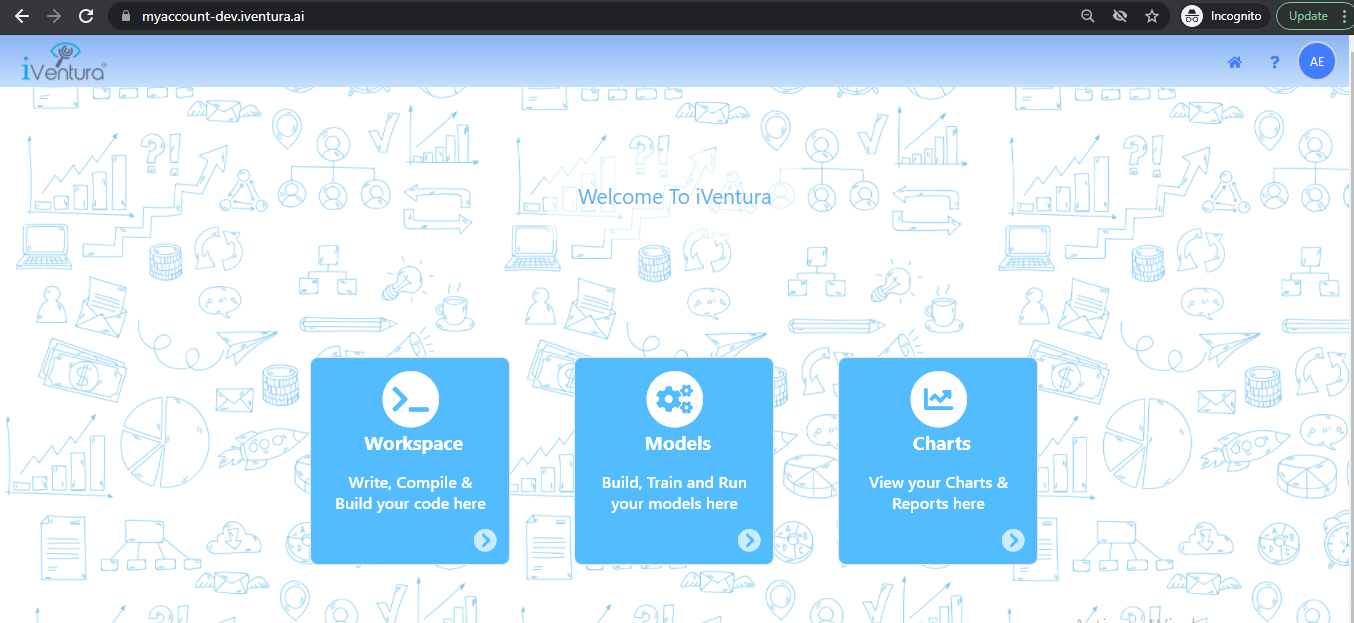
Click on the choice of the tab you want to work on. That is Workspace, Models, and Charts to start your project.
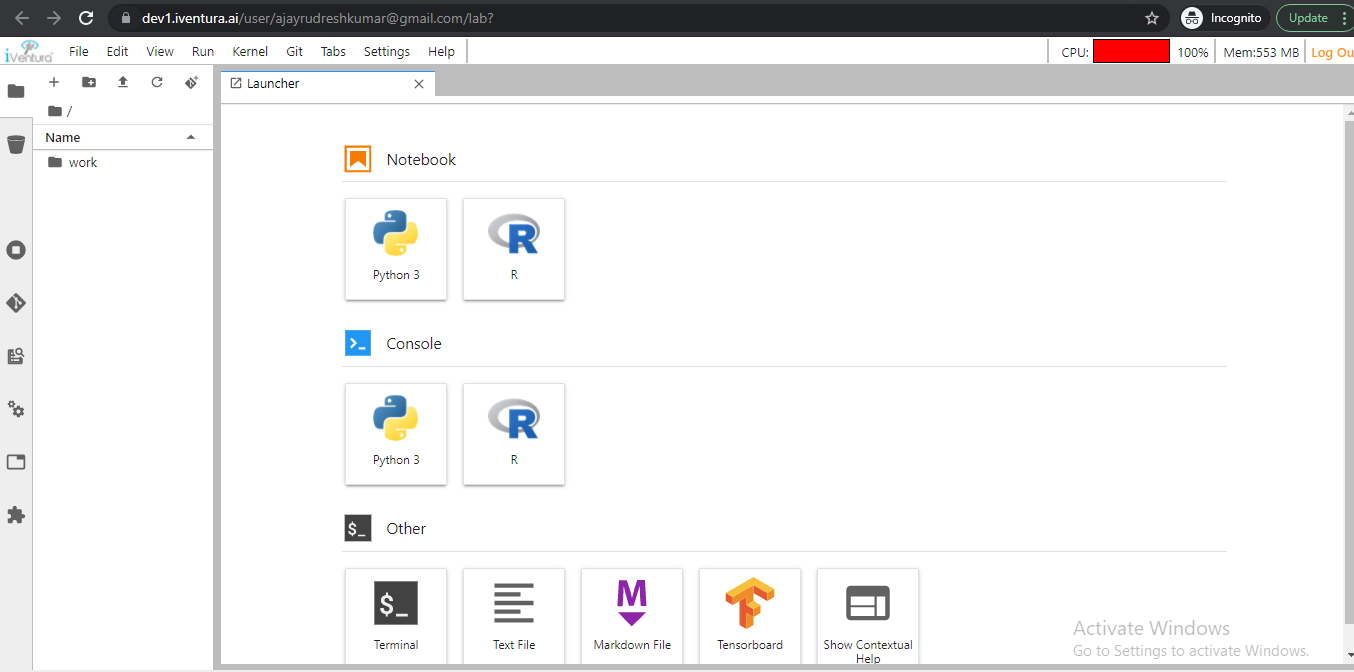
Workspaceprovides you a Machine learning platform with pre-installed libraries.
● You can write and test your scripts here iVentura User Guide
● The script is written on a python notebook which can be renamed, shared, uploaded, downloaded, and exported in any format like pdf, HTML, etc.
● You can also upload folders(which contains python files) of the local system
● You can collaborate with git, Google Drive, and Amazon S3 for data ingestion.
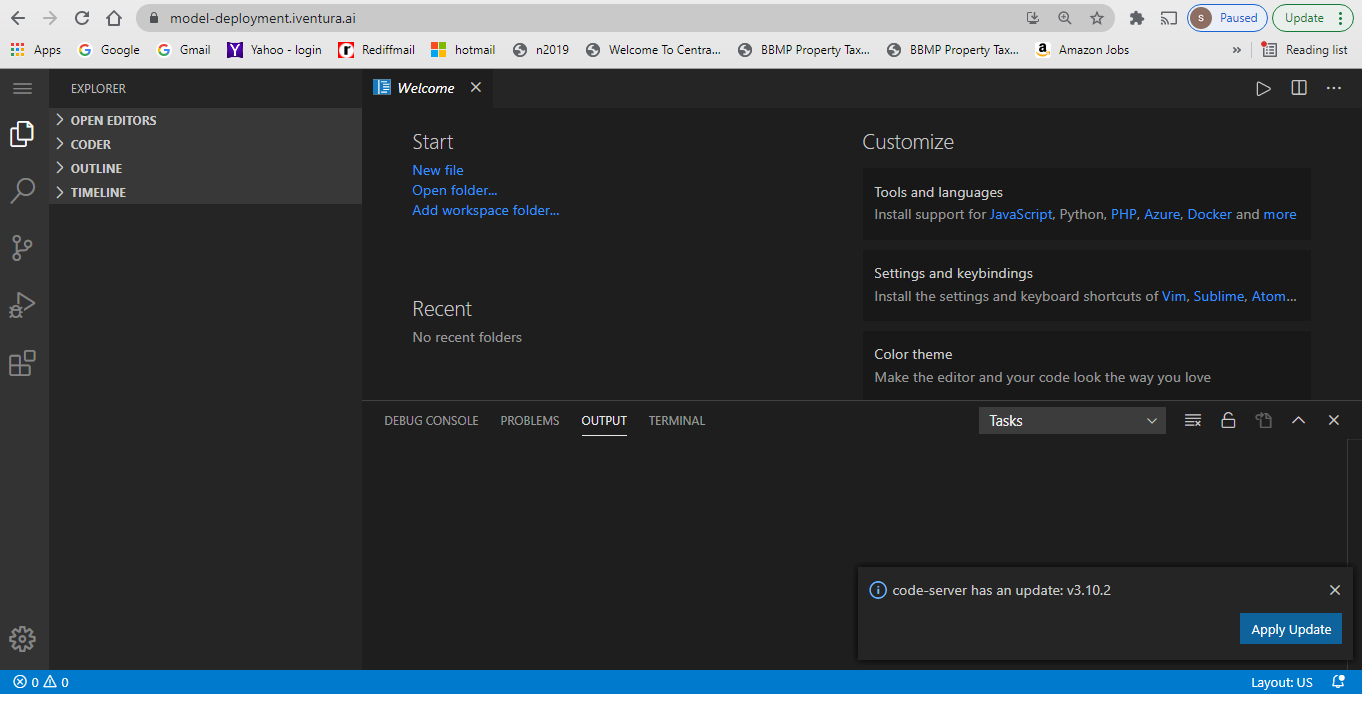
Modelsprovide you a platform to build your application and deploy it on Kubernetes. This provides an online code editor build specifically for python and packages related to python.
It has an example template of a trained model called Sentiment Analysis . It is a flask application. To run this application install the required file using the terminal provided (using pip3) and run the app.py file as a normal python file using python.
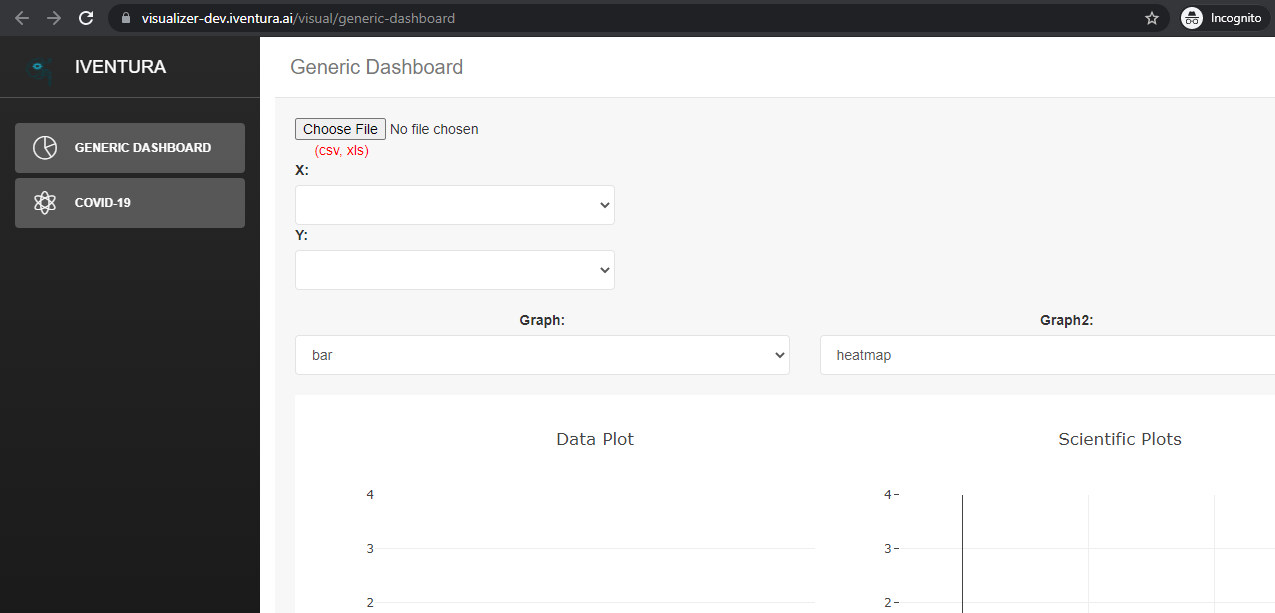
Chartsprovides you the platform to visualize your data.
· You can upload the data from your laptop/system (max file size 10Mb)
· The platform provides different kinds of visualization graphs. You can pick the graph based on the requirement.
· Example csv file: https://github.com/prodevans/CSV
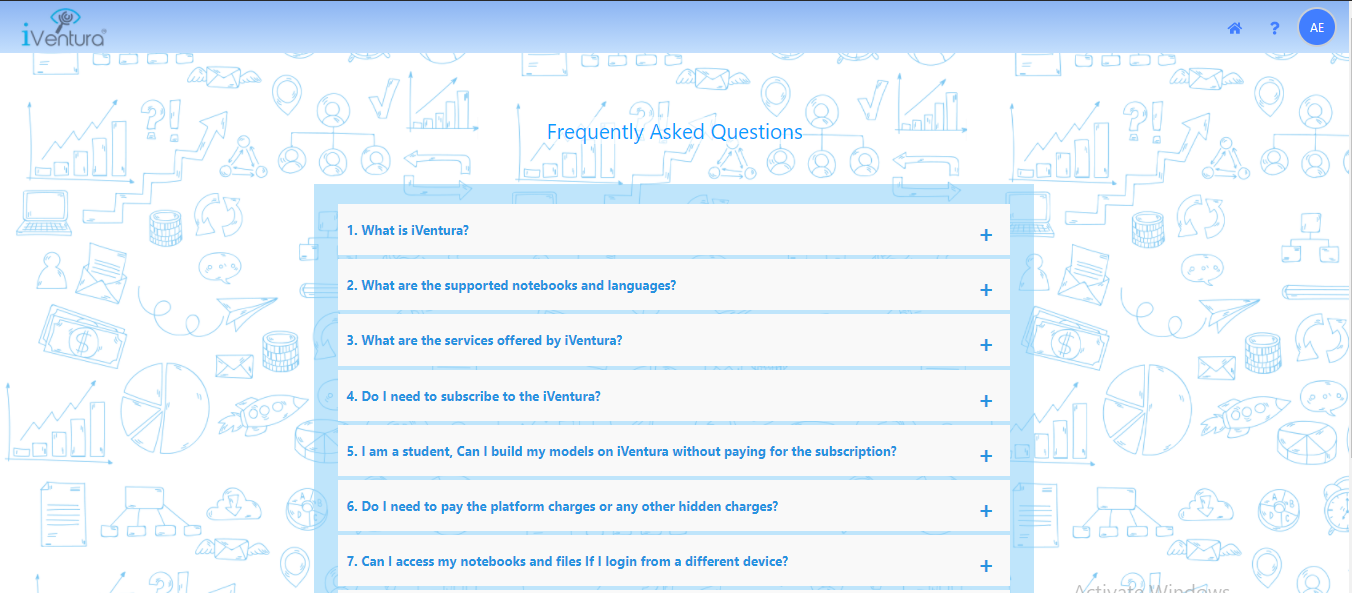
Step 7: Click on Help(?) icon to access FAQs of iVentura (Optional)
No comments to display
No comments to display